
See who's free next week
Open Workload, switch granularity to Week, choose This week in the date picker, select Next period, and filter Workload to Underutilized (<70%). Everyone returned has an average utilization below 70% in that visible range.
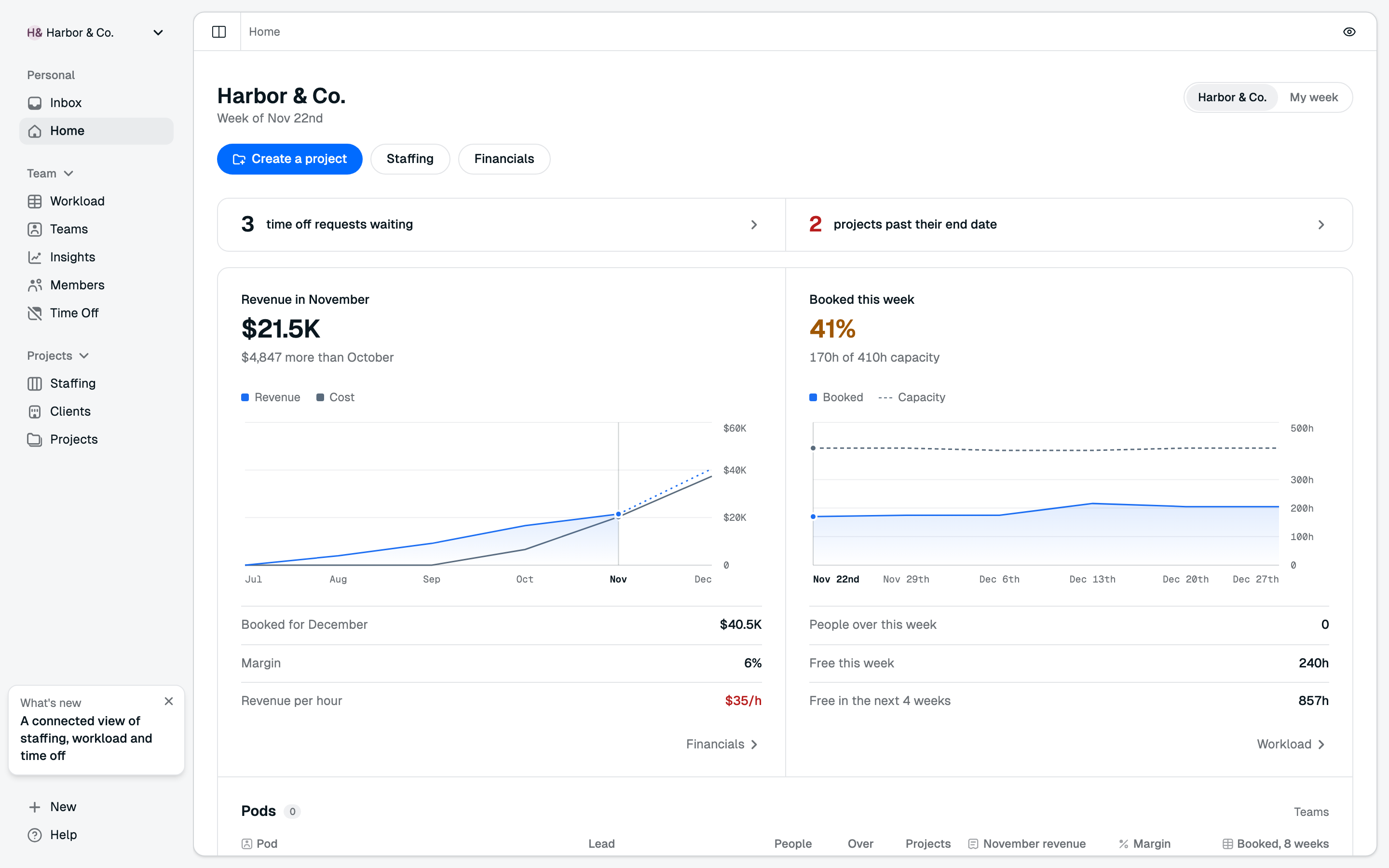
Who can do this Any non-freelancer workspace member. Freelancers are redirected away from Workload. The workspace view of Home
is Owner and Admin only.
Steps
Open Workload
Switch to Week view
Move to next week
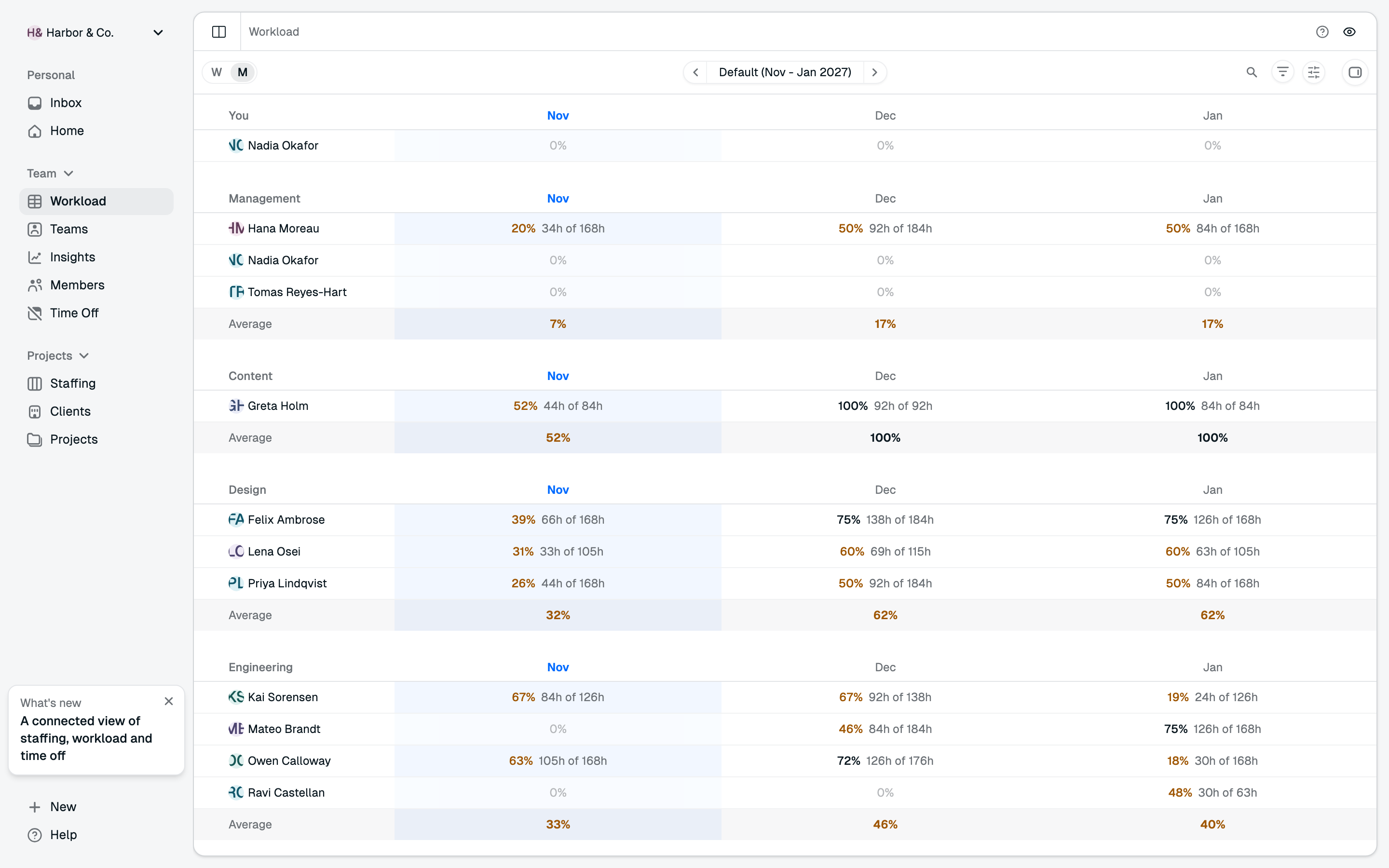
The default range is three months. Open the date picker, choose This week, and select Next period. Set the range before filtering, because the Workload filter evaluates each person's average over the visible range.
Filter to Underutilized (<70%)
Open the Workload filter and select Underutilized (<70%). Add a Capabilities filter or group by Capability if you need a specific skill.
Check a person's free hours
Select a person's row (for example, Hana Moreau) to confirm their exact assigned versus available hours and make sure they are not out on leave.
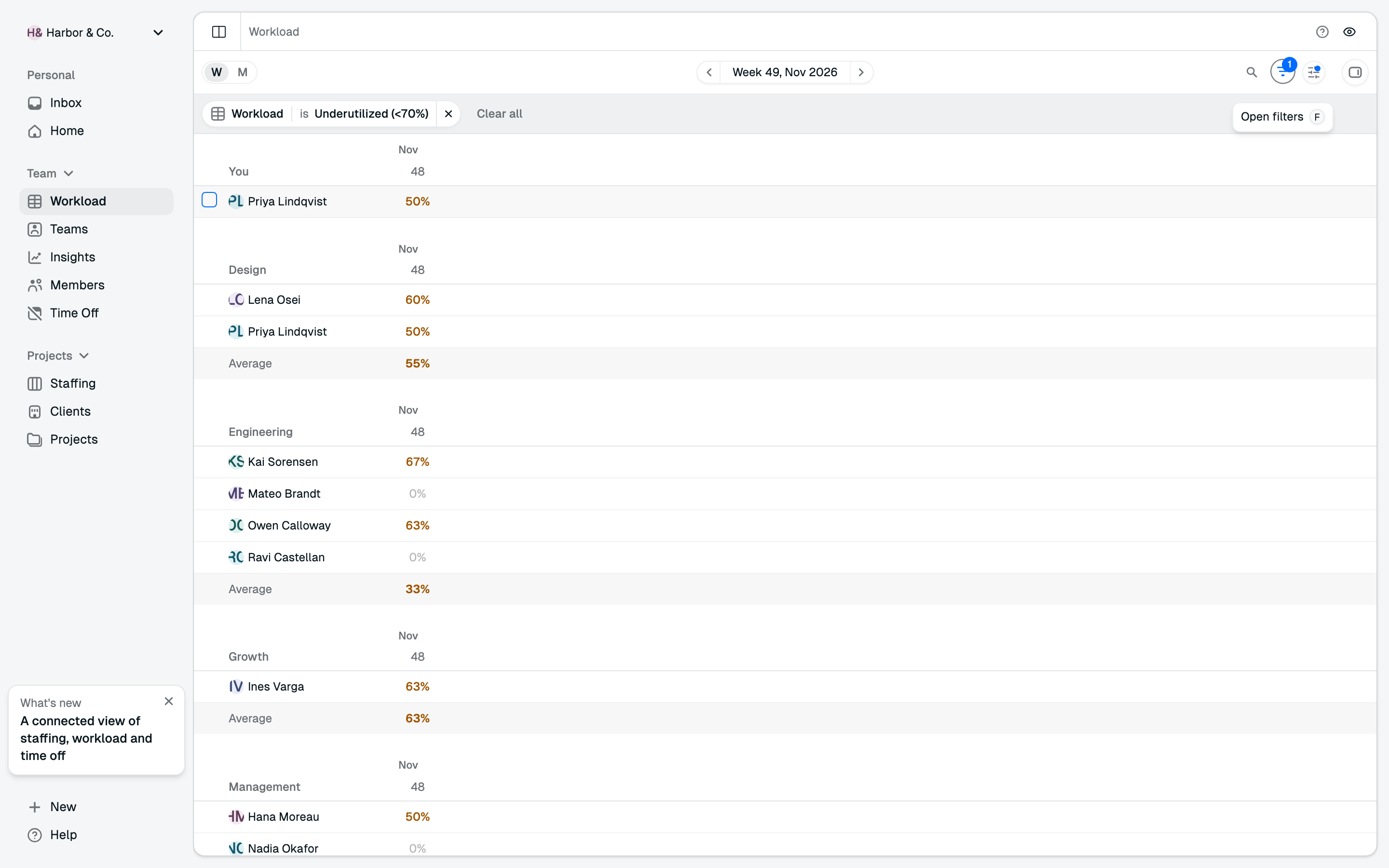
What you'll see
Each cell shows round(assigned / available × 100) for that Sunday-start week:
| Band | Threshold | Meaning |
|---|---|---|
| Underutilized (<70%) | Under 70% | Has open capacity. For example, Hana Moreau at 10h assigned out of 20h available shows 50% (10h free). |
| Healthy (70-100%) | 70% to 100% | Near or at capacity. For example, Nadia Okafor at 32h out of 40h shows 80% (8h free). |
| Overloaded (>100%) | Over 100% | Booked past available hours. Shown in red text. |
You can also check two other views depending on your role:
- Home (Owner and Admin only): on the workspace view, check Free this week for unused hours this week, or Free in the next 4 weeks for unused hours across weeks 2 to 5 (this excludes this week).
- Teams (non-freelancers with team access): compare Free / wk (
available - booked, averaged over 8 weeks) across pods.
Common gotchas
- The Workload filter hides someone who is free next week: the filter uses the average over the entire visible range, not a single column. Switch to Week and narrow the range to next week before applying Underutilized (<70%).
- "No team members match your view": active filters or Search team members... exclude everyone. Select Show all team members to clear filters. (Turning on Suspended users does not restore inactive, pending, or suspended members, because the server excludes them.)
- Someone looks free on Workload during a public holiday: public holidays with Marks everyone away turned on reduce availability on Teams and My week, not on Workload or the workspace view of Home. Check Time Off → Team calendar before booking them.
- Someone looks free because their current projects are not entered yet: ask them to update their T&M rows or submit Request project hours using Keep your hours up to date.
- A cell shows a dash instead of a percentage: the person has 0 available hours that week (either Weekly hours is 0 or approved time off covers the full week).