
Developer: your first API or MCP call
About 5 minutes. You're done when one read call returns your workspace identity over MCP (whoami) or REST (GET /api/v1/me).
Who can do this MCP: any active member with access to Settings → Connected Accounts. API keys: Owner or Admin only.
Choose MCP or the REST API
| Route | Auth | Who can set it up | How writes behave |
|---|---|---|---|
| MCP Server | OAuth (acts as you) | Any member who can open Settings → Connected Accounts | Tools with a preview field default to preview: true; some admin tools apply immediately |
| API | Bearer key (sv_live_...) | Owner or Admin only | Every REST write applies directly with no preview |
If you are connecting an assistant or coding tool to Supervisible docs, point it at /llms.txt for a plain Markdown index of every docs page.
1. Connect an assistant with MCP
Each person connects their own assistant with OAuth.
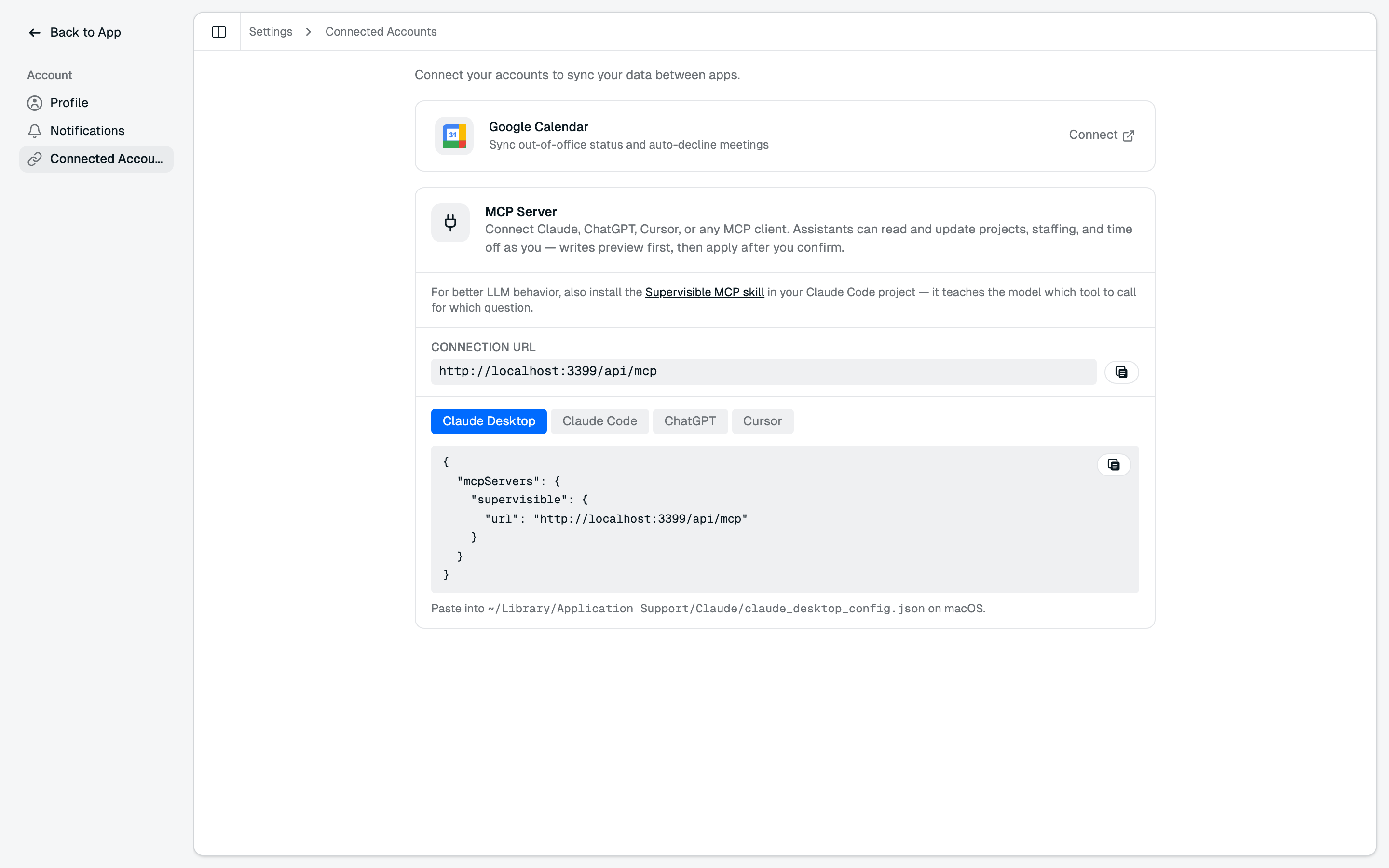
Open the MCP setup card
Pick your client tab
Choose Claude Desktop, Claude Code, ChatGPT, or Cursor, copy the Connection URL
(https://app.supervisible.com/api/mcp), and complete the OAuth sign-in flow in your client.
Using another MCP client? Point it to https://app.supervisible.com/api/mcp if it supports remote OAuth MCP, or use the REST API below with an sv_live_ key.
2. Make your first MCP call
Ask your connected assistant to call whoami first, then get_context.
whoami: confirms your authenticated user, workspace, roles, and financial visibility.get_context: loads your workspace's people, live projects, and clients so follow-up queries have their names and IDs.
When you ask your assistant to change data (for example, logging actual hours with upsert_actual_hours), tools with a preview field default to preview: true so you can inspect the change before confirming. Note that revoke_api_key, manage_member, and manage_workspace apply immediately without preview.
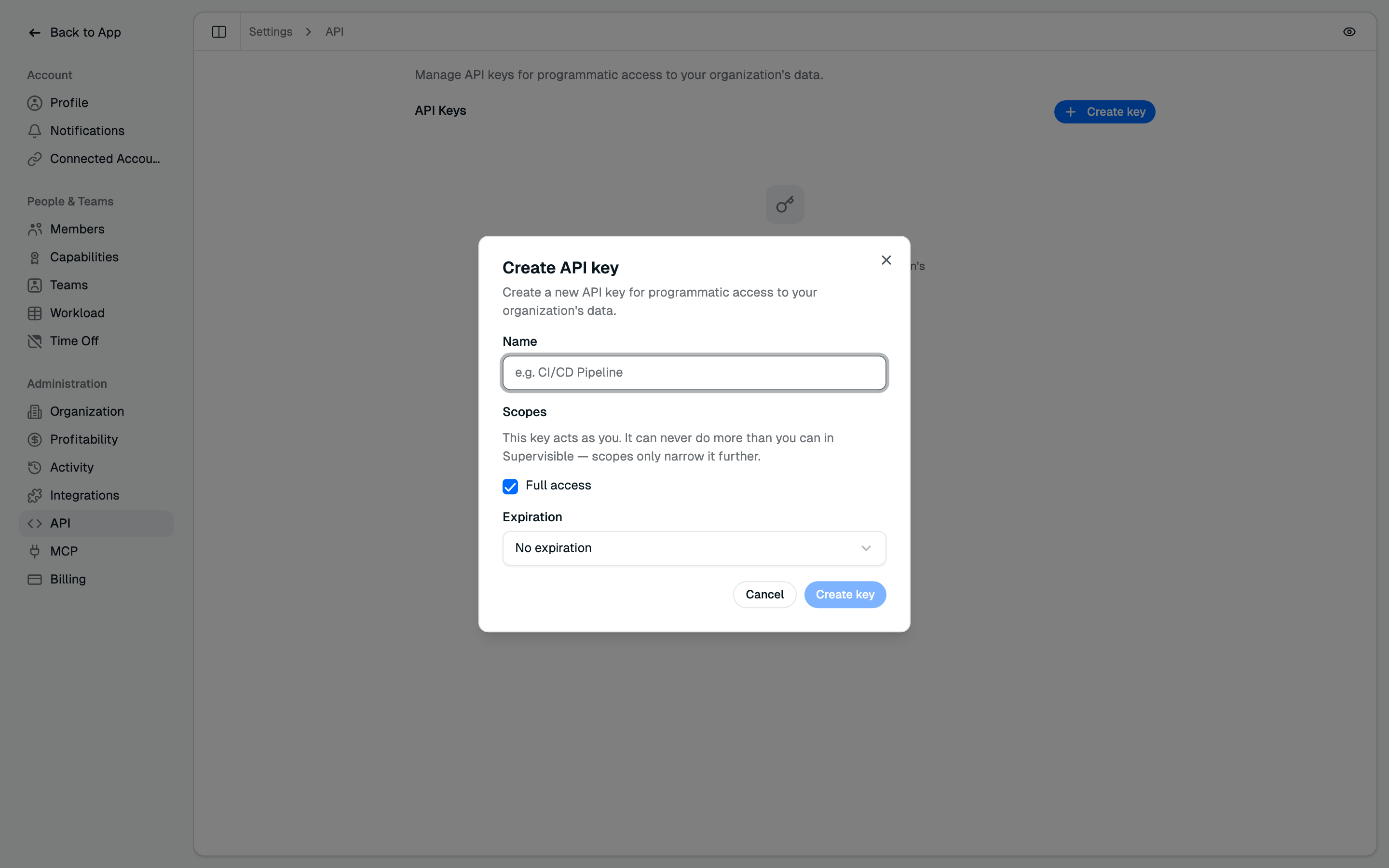
Owners and Admins can review all connected assistants and Recent logs in Settings → MCP.
3. Create an API key
Owners and Admins can create keys for scripts, automations, or coding agents that use the public REST API.
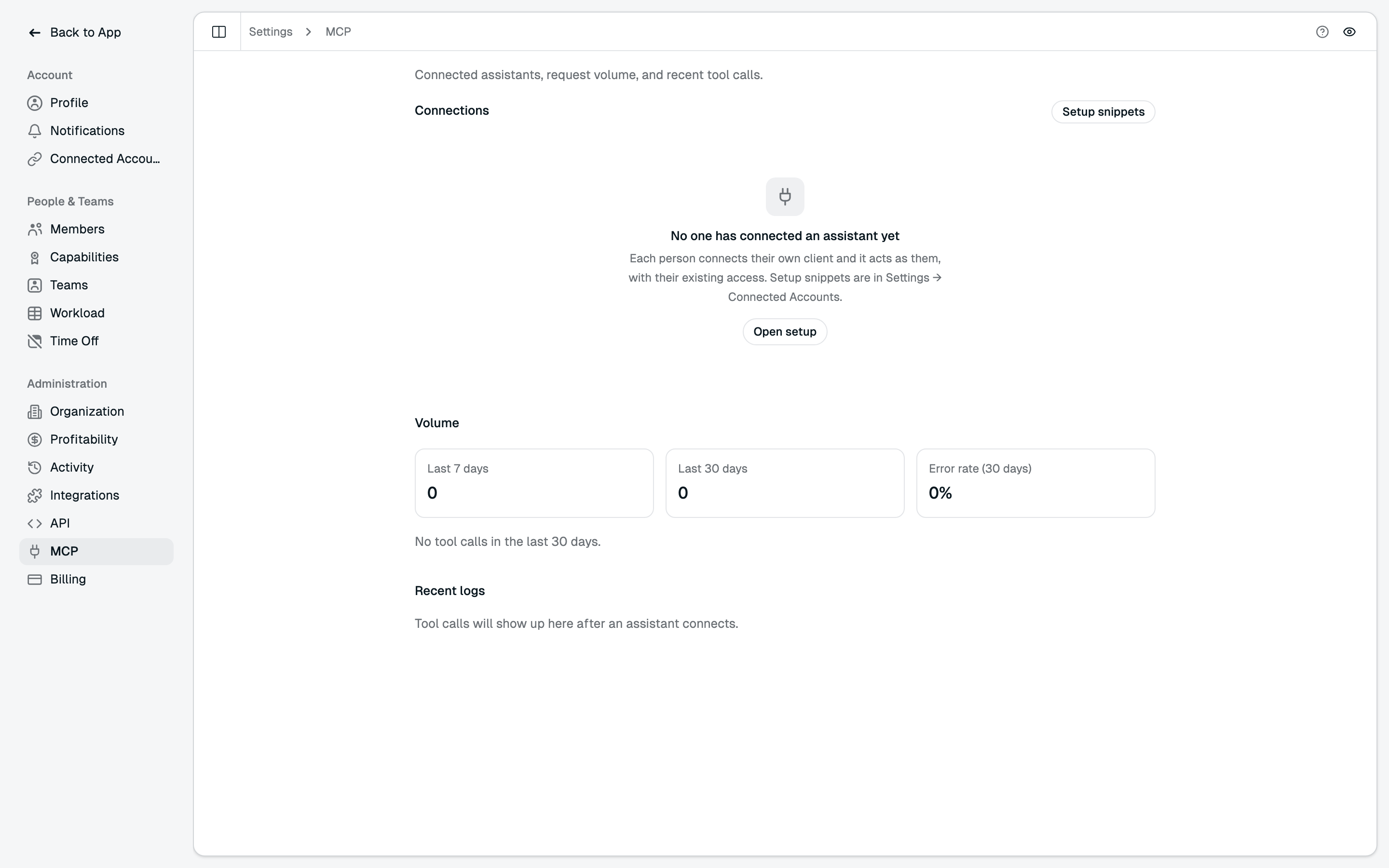
Open API settings
Go to Settings → API and select Create key (or Create your first API key).
Configure and save
In Create API key, enter a Name (for example, "Weekly Sync"), choose Scopes (Full access is selected by default; if you turn it off, select at least one scope), pick an Expiration (No expiration, 30 days, 60 days, 90 days, or 1 year), and select Create key.
Copy the token immediately
On API key created, copy the sv_live_ token right away. The app shows "Copy your API key now. You won't be
able to see it again."
An API key acts as its creator. It can never perform an action its creator cannot perform in Supervisible; Scopes only narrow its permissions further.
4. Make your first REST request
Send a GET request to /api/v1/me with your bearer token. This endpoint requires no scope.
curl -s https://app.supervisible.com/api/v1/me \
  -H "Authorization: Bearer sv_live_YOUR_48_HEX_CHARS"
A 200 OK response returns your API key identity and workspace details.
5. Run a write call (optional)
Unlike MCP, every REST write applies immediately with no preview. For example, POST /api/v1/assignments and POST /api/v1/actual-hours (scope write:actual_hours) accept 1 to 1,000 items in a single transaction. If a batch contains a duplicate key, the entire batch is rejected.
curl -s -X POST https://app.supervisible.com/api/v1/actual-hours \
  -H "Authorization: Bearer sv_live_YOUR_48_HEX_CHARS" \
  -H "Content-Type: application/json" \
  -d '{"items":[{"projectId":"<project-uuid>","userId":"<user-uuid>","date":"2026-11-15","hours":24}]}'
Remember that Supervisible weeks start on Sunday (2026-11-15 for the week of Nov 15). For full endpoint schemas, scopes, and MCP tool details, visit Developer documentation.
You're done when
- MCP path: your assistant connected via
https://app.supervisible.com/api/mcpand returned results forwhoamiandget_context. - API path: you created an
sv_live_key in Settings → API and received200 OKfromGET /api/v1/me.