
Member: your first day
About 5 minutes. You're done when your week in Workload matches your real projects and you know where to request time off.
Who can do this Active Member account. Freelancers do not see Workload, Teams, Members, Time Off, or Clients in
the sidebar.
1. Sign in to your workspace
Only an Owner or Admin can invite you to Supervisible.
Open your invitation email
Look for an email with the subject "<sender> invited you to join <workspace>" (for example, "Nadia Okafor invited you to join Harbor & Co.") and select the join button. Invite links expire after 7 days.
Create your account
Choose Continue with Google or Create Account with Password. You land on Home.
If you do not have an invite email and your work email domain is configured under Settings → Organization → Domains, signing in with that email adds you as a Member automatically. Otherwise, ask an Owner or Admin to invite you.
2. Read Home
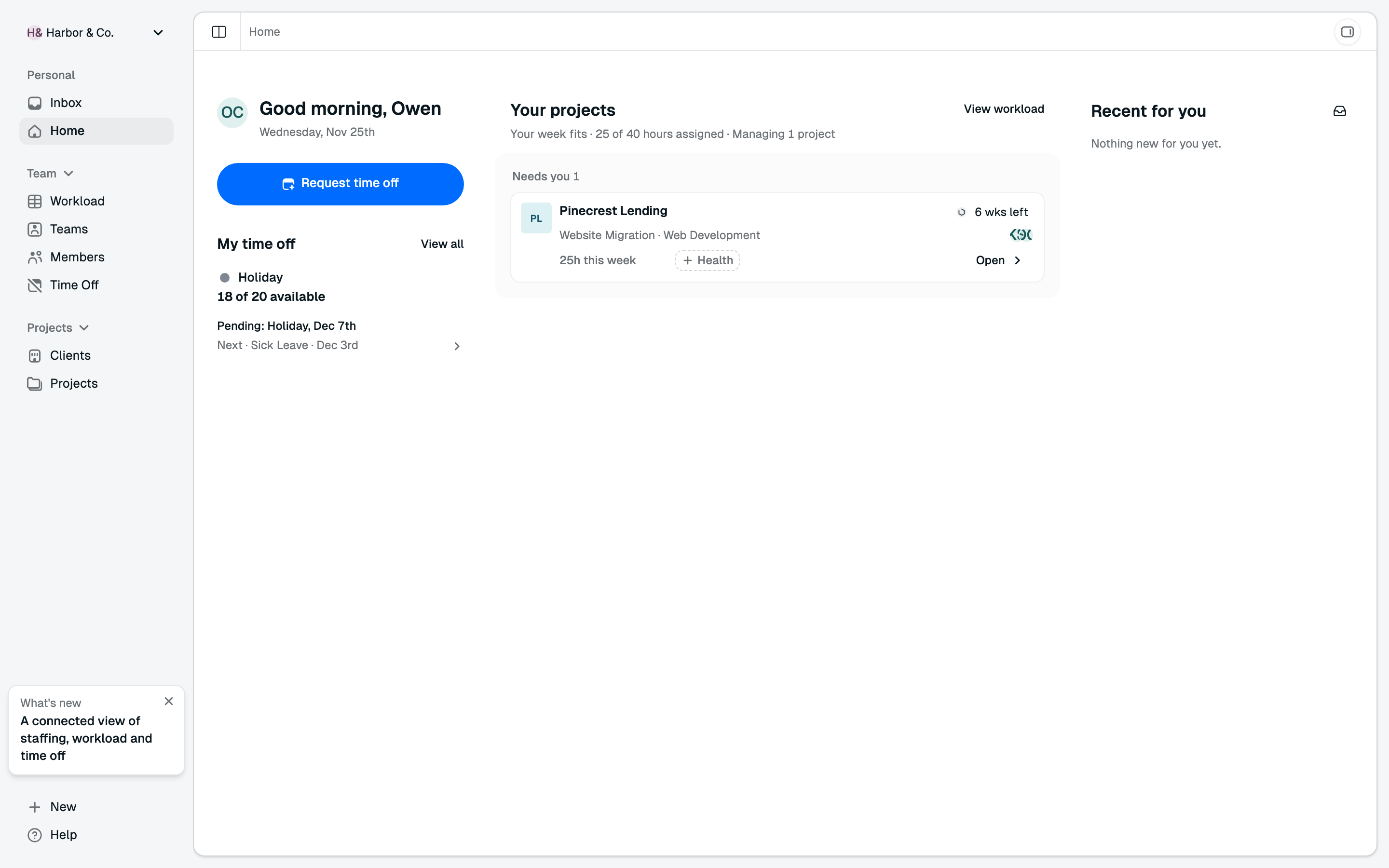
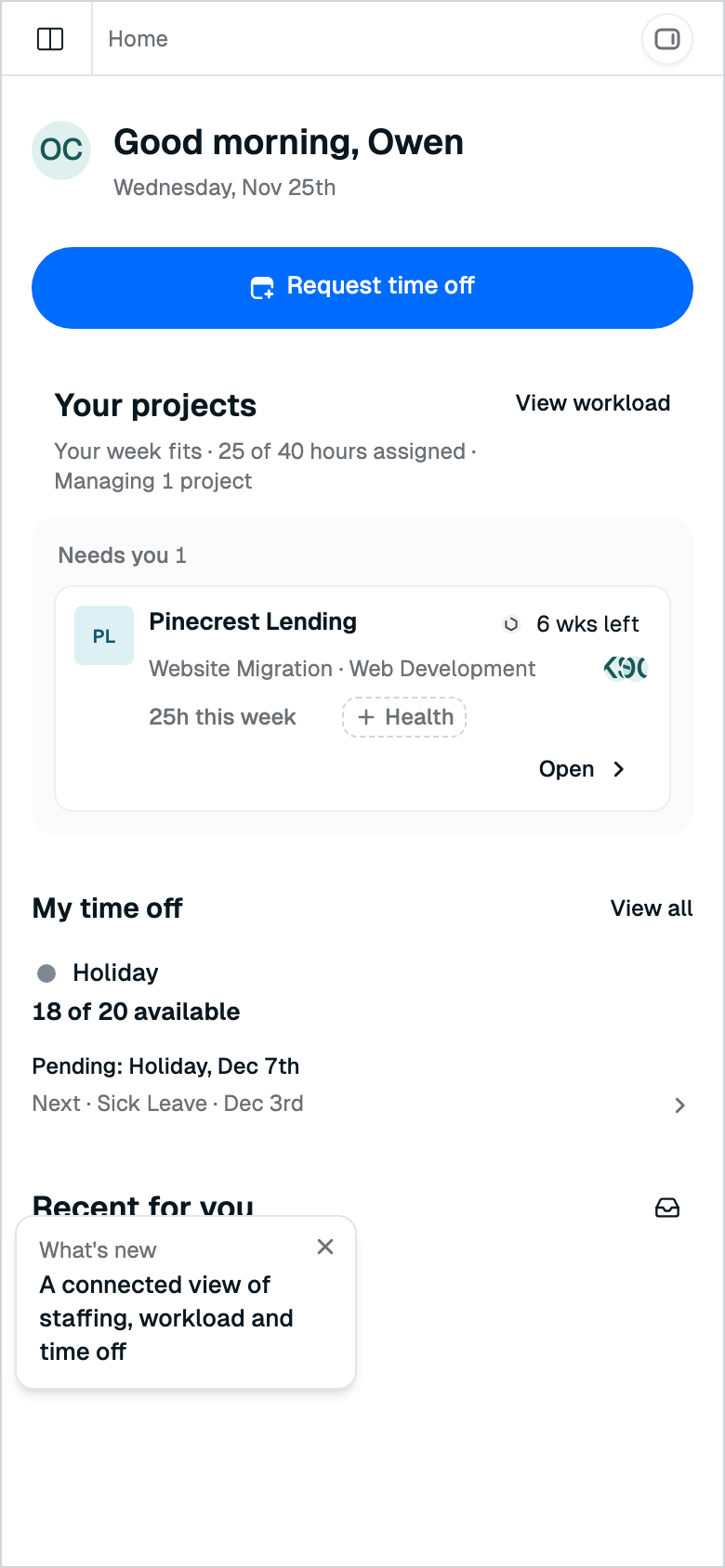
Home opens on My week, showing your current assignments, updates, and upcoming time off so you can see what needs attention today.
3. Check your week in Workload
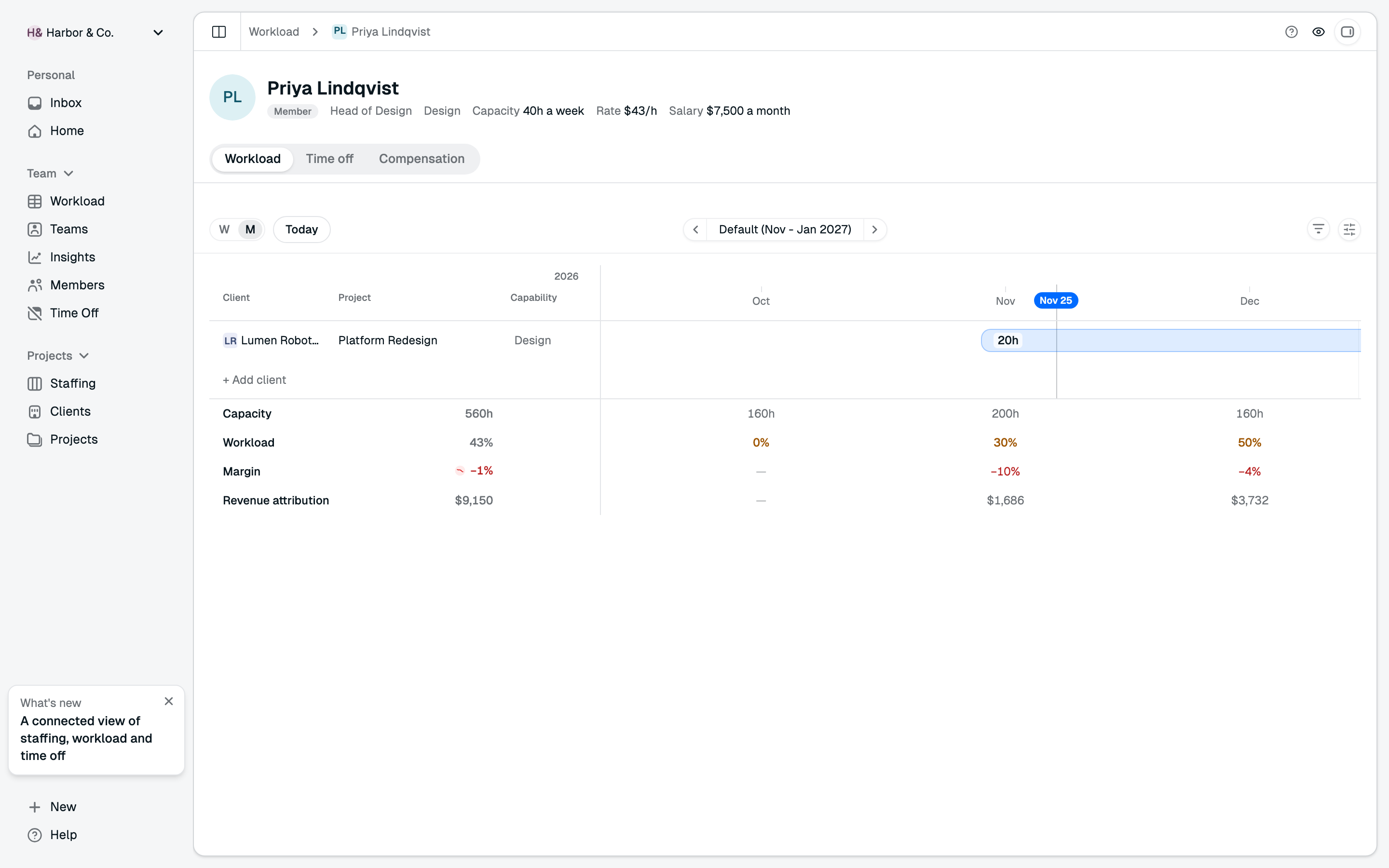
Press G M (or press ⌘K and select Go to My Workload) to see your projects and weekly planned hours.
- Under 70% of available hours: Underutilized (<70%).
- 70% to 100% of available hours: Healthy (70-100%).
- Over 100% of available hours: Overloaded (>100%).
Planned hours are what drive your weekly capacity percentage. They are a weekly plan, not a daily timer.
4. Fix missing or wrong hours
If your planned hours do not match what you are working on, update or request a change right away.
Edit directly on T&M projects
If the project uses T&M billing, edit your own planned hours directly on your row in Workload.
Request hours on Fixed or Retainer projects
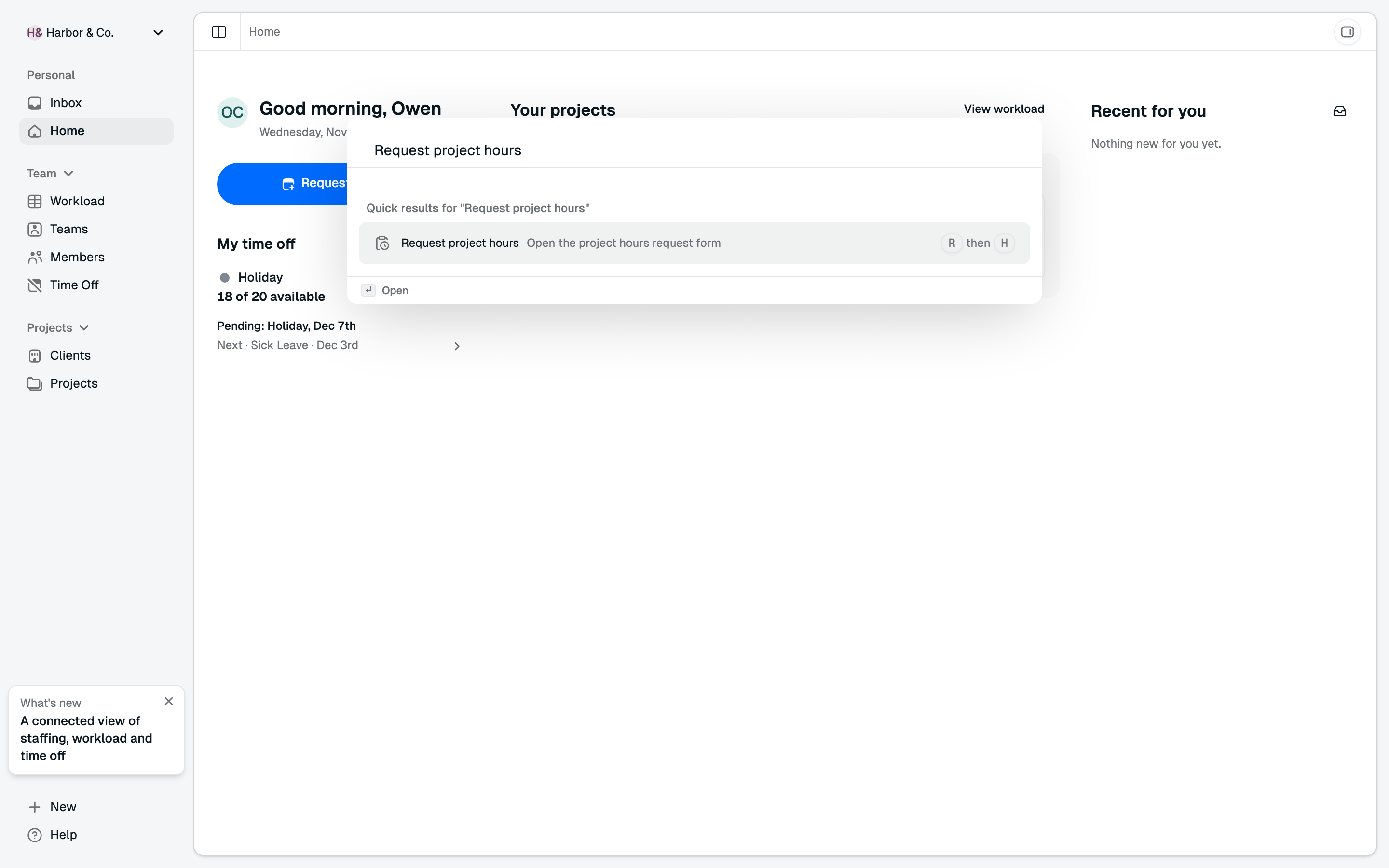
If the project is Fixed or Retainer (or you are not on the project yet), press ⌘K (or R H), choose
Request project hours, enter your weekly hours and a reason in New Project Hours Request, and select
Create request.
Supervisible has no web UI to enter actual hours. Planned hours drive your workload. If your team tracks actual hours, they must be logged through the public API (POST /api/v1/actual-hours) or an MCP assistant (upsert_actual_hours), where you can log your own hours.
If a finished project still fills your week, its status is still active. Ask the Project Manager or an Admin to mark it Completed. See Keep your hours up to date for details.
5. Request time off
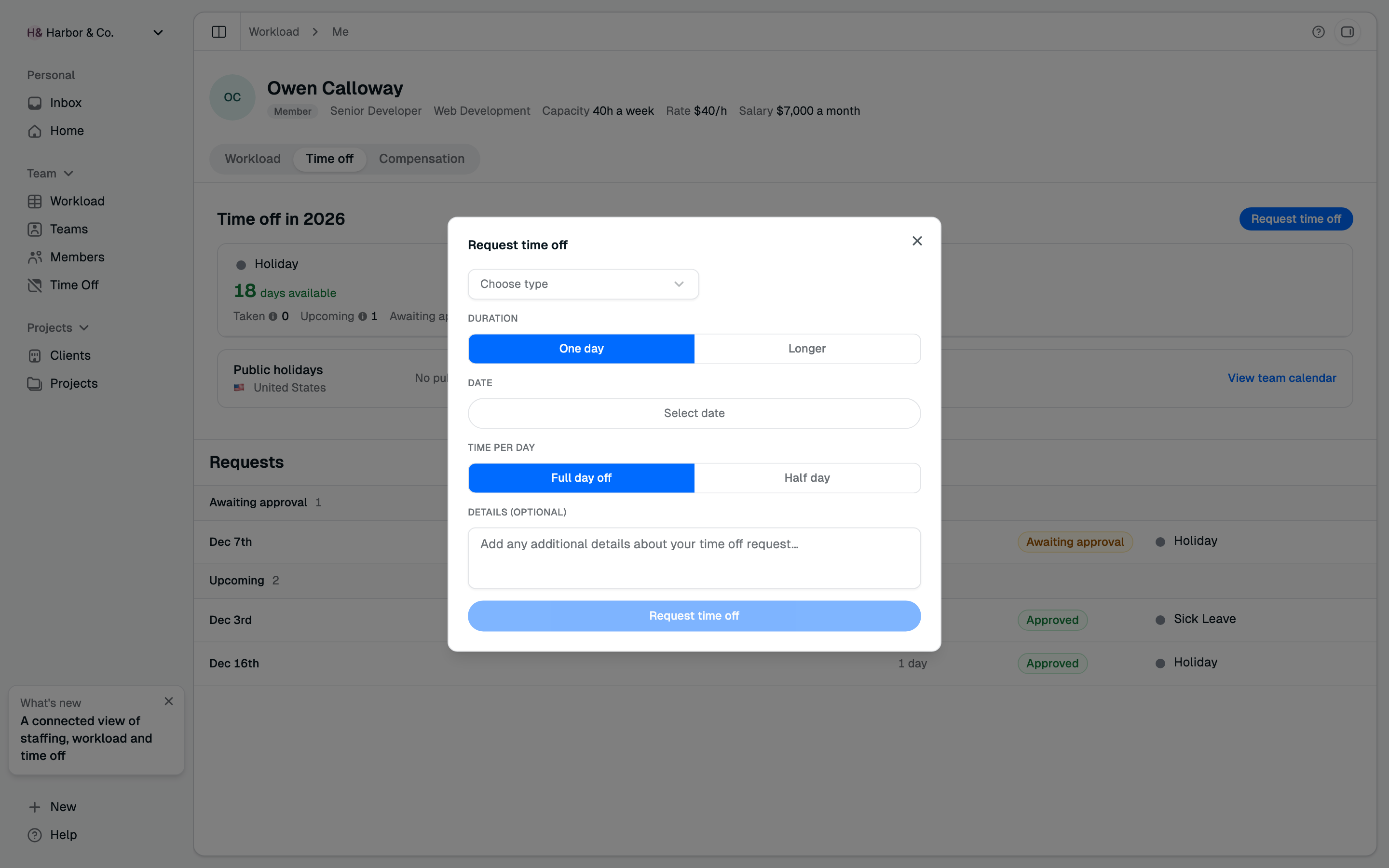
Press B T, or select Request time off on Home or on your time-off page (Go to My Time Off).
Choose type and dates
Select Choose type, pick One day or Longer under Duration, and select your Date or Date range.
Pick full or half day
Under Time per day, choose Full day off (0 hours available that day) or Half day (4 hours available that day), add Details (optional), and select Request time off.
Types with Requires Approval on move to Awaiting approval until your Reports to manager, or an Owner or Admin, approves them. Types without approval (such as Sick or Bereavement by default) are booked right away.
Connect Google Calendar for out-of-office events
Open Settings → Connected Accounts and connect Google Calendar. Approved Full day off requests then create an out-of-office event automatically. Half day requests do not create calendar events.
You're done when
- You signed in and checked Home → My week.
- Your current week in Workload matches your active projects, or you submitted Request project hours.
- You know where Request time off lives and connected Google Calendar if you want out-of-office events.