
Keep your hours up to date
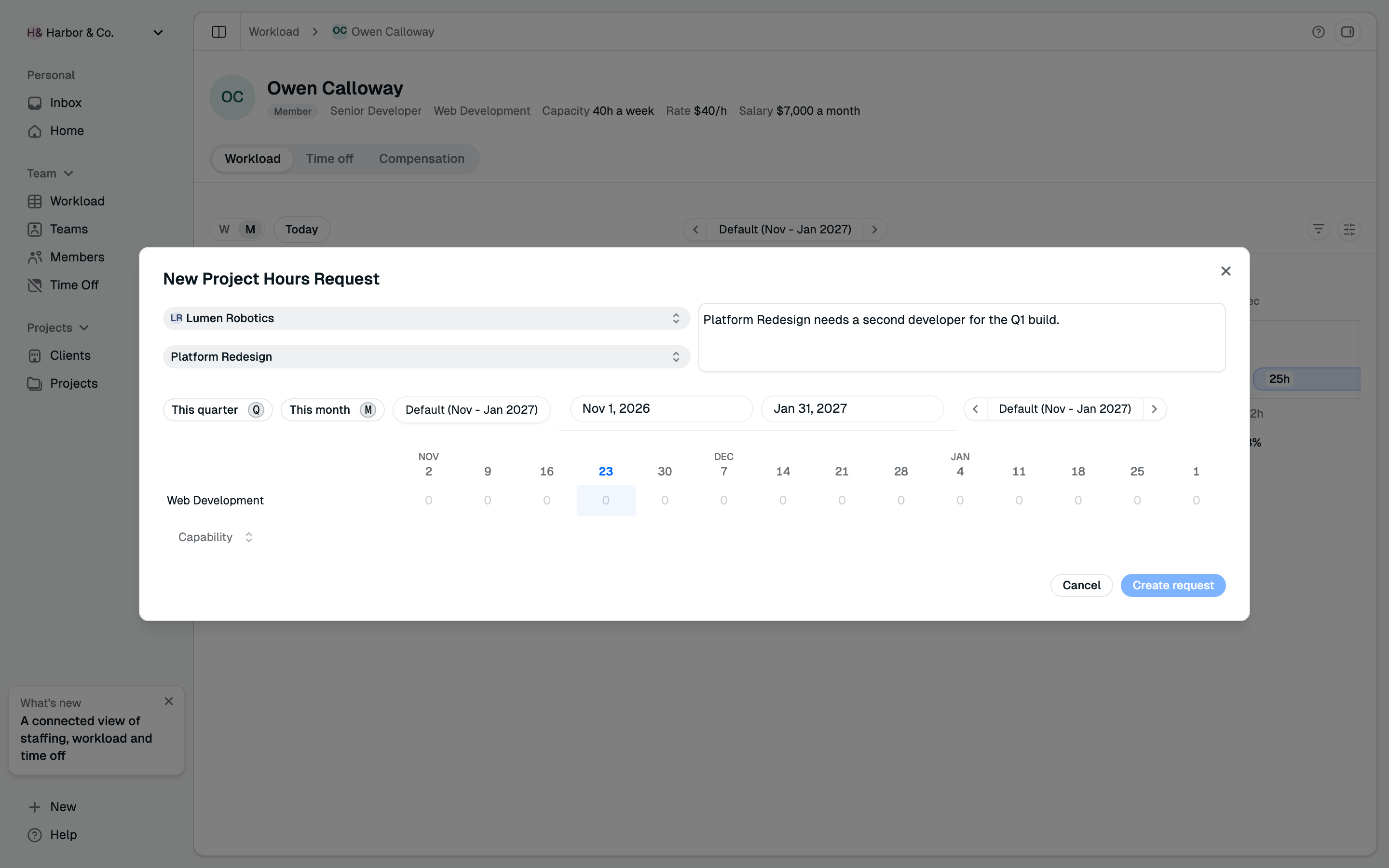
On a T&M project, open your own Workload page and edit your planned hours directly. On a Fixed or Retainer project, press ⌘K (or R H), choose Request project hours, and submit New Project Hours Request.
Who can do this Any active Member can edit their own rows on T&M projects and send Request project hours on any project.
Closing or extending a project requires Owner, Admin, or Manager update permissions, or being the project's Project
Manager or Account Manager.
Steps
Open your own Workload page
Select Workload and open your own row (or press ⌘K and choose Go to My Workload).
Edit your own T&M rows directly
For any T&M project, click the Sunday-start week cell on your row and enter your updated planned hours.
Submit Request project hours for Fixed or Retainer work
For a Fixed or Retainer project (or a project not yet on your timeline), press ⌘K (or R H), choose
Request project hours, enter your weekly hours and a reason in New Project Hours Request, and select
Create request.
What you'll see
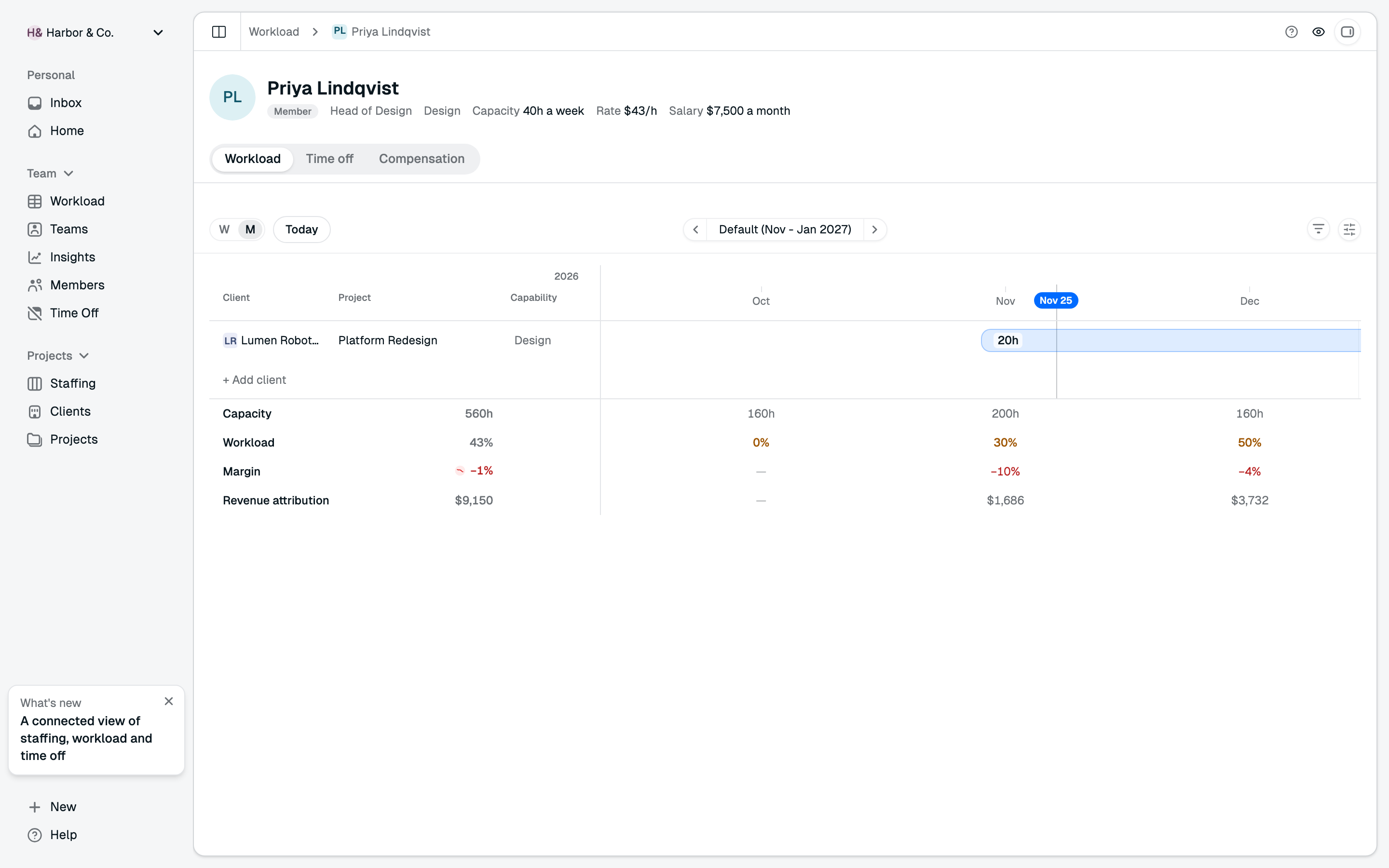
- T&M edits update your Workload percentage and the project timeline immediately.
- Request project hours notifies the project's Project Manager. Anyone who can edit assignments on that project, including the Project Manager or Account Manager, can approve or reject it. Approving adds you to the project team if needed and writes the weekly hours.
- You can have one pending request per project at a time; submitting again updates your existing pending request.
Log actual hours
There is no web UI in Supervisible to enter actual hours. Planned hours are what drive Workload capacity.
If your agency tracks actual hours (used by Project Financials, Staffing, and Home when logged):
- Log your own hours through the public API (
POST /api/v1/actual-hours, scopewrite:actual_hours, up to 1,000 items per batch). - Or ask a connected MCP assistant to call
upsert_actual_hours. - Members can log only their own actual hours. If nobody logs actual hours through the API or MCP, actuals stay at zero and financial screens fall back to planned hours. See Developer: your first API or MCP call.
Close out a finished project
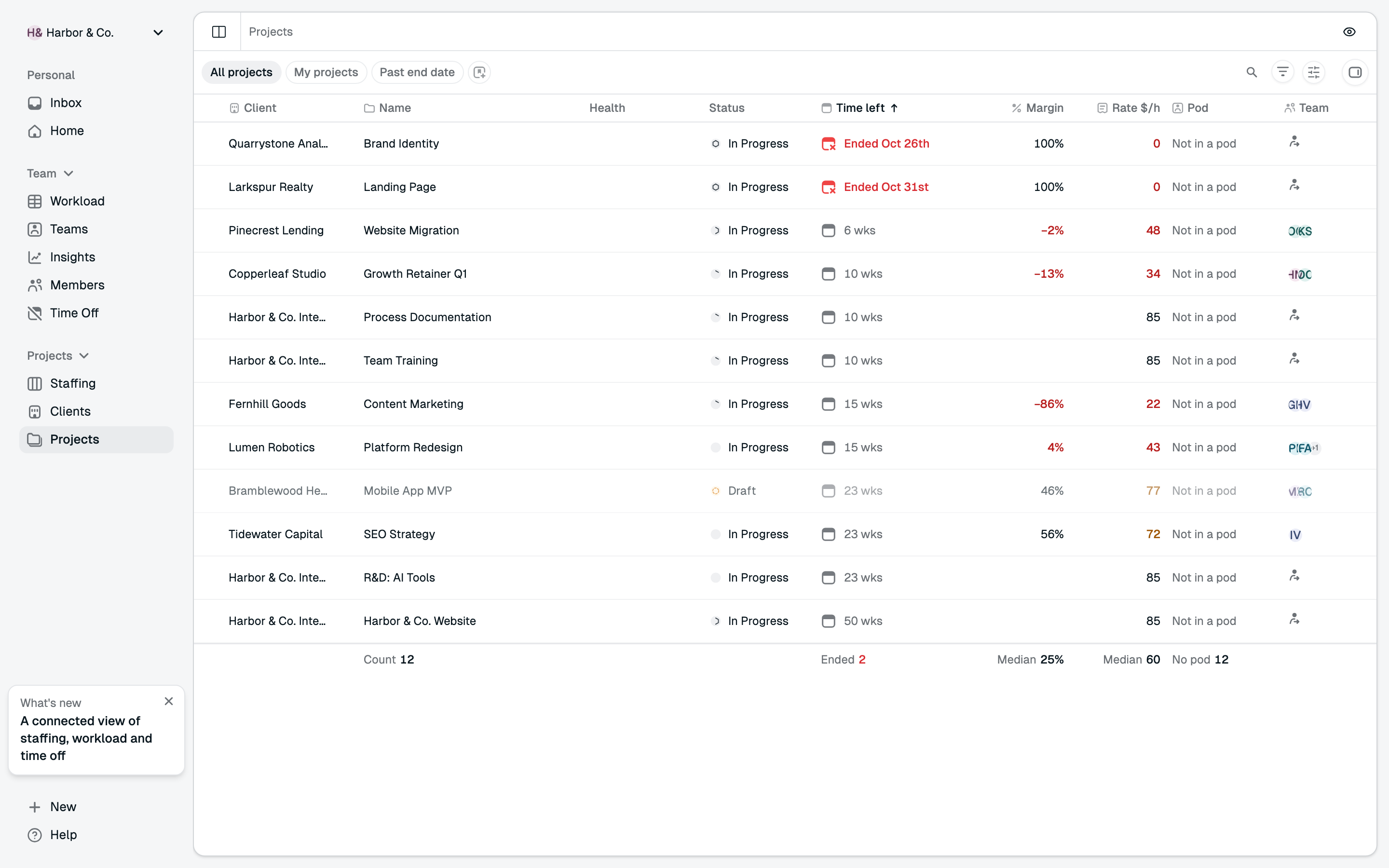
A project keeps counting in everyone's Workload past its End Date until its Status changes to Completed or Cancelled.
- Open the finished project from Projects and change Status to Completed (or Cancelled if the work did not proceed).
- In the confirmation dialog ("Completing releases capacity" or "Cancelling releases capacity"), select Confirm.
Setting Completed or Cancelled releases planned hours after the current week so teammates' upcoming capacity frees up. Past weeks remain visible on a person's page if they turn on Show completed or Show cancelled in Customize display, without affecting capacity percentages.
Extend or restart a project
When a project runs longer or enters a second phase, you have two ways to extend dates and carry staffing forward:
- Single project: open the project and move its End date later. In the confirmation dialog, check Carry staffing forward and select Extend project (or choose Keep current dates to cancel).
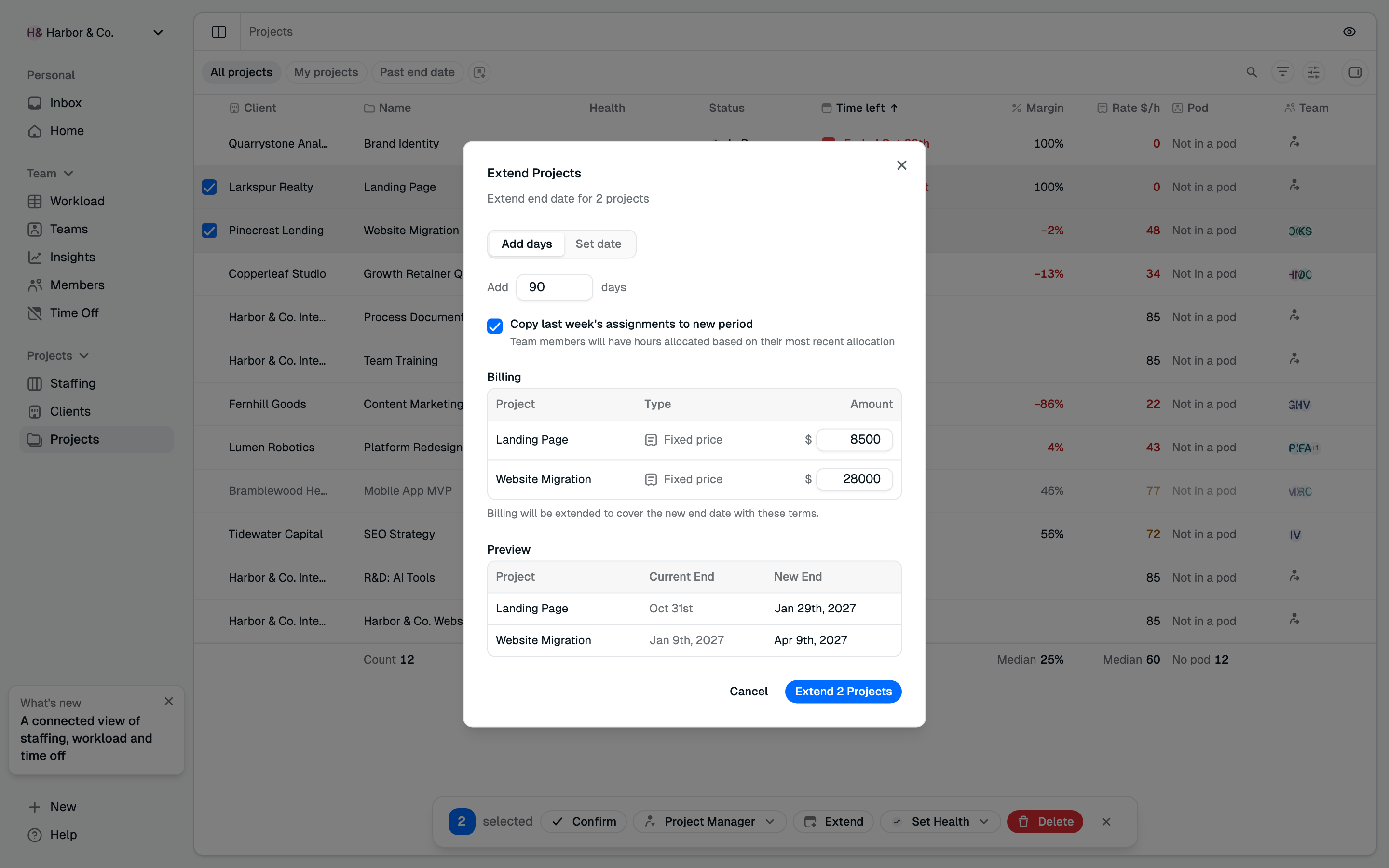
- Multiple projects at once (requires delete permission on Projects to see the bulk bar, plus update/PM/AM rights on each selected project): select rows on Projects, choose Extend, and in Extend Projects pick Add days (90 days by default) or Set date, keep Copy last week's assignments to new period checked, and confirm.
If you drag an assignment past a project's end date on a timeline, Supervisible prompts you to keep the current date or extend the project end date. If you shorten a project's end date, Supervisible prompts "Remove out-of-range assignments?" with Remove and update.
Common gotchas
- "You can only adjust your own hours, and only on time & materials projects.": you tried to edit a Fixed or Retainer project row directly on your Workload page. Use Request project hours from the command menu (
⌘KorR H) instead. - You cannot find a form to enter actual hours: Supervisible has no web UI for actual hours. Log them through
POST /api/v1/actual-hoursor the MCP toolupsert_actual_hours. - A finished client still fills your weekly capacity: capacity follows Status, not End Date. Ask the Project Manager or an Admin to mark the project Completed and select Confirm.
- Hours appear in the adjacent week: Supervisible weeks start on Sunday. Check the week tooltip on Workload to confirm which Sunday-start week holds the hours.