
Troubleshooting and FAQ
Find the symptom you are seeing below for the cause, the fix, and the full task page.
Access
I can't get in or nobody invited me
Only an Owner or Admin can invite you to Supervisible, unless your company added its email domain under Domains.
- "This invite link is no longer valid. Ask your team for a new one.": individual
/join/links expire after 7 days. Ask an Owner or Admin to invite your email again in Settings → Members. - "There's no Supervisible workspace for your email domain yet." or "You aren't in a workspace yet. Ask your team for an invite.": your domain is not set up for auto-join and you have no active invite. Ask an Owner or Admin to send an invitation.
- "Use your work email address.": sign in with your work email rather than a personal email.
- Your name was typed during onboarding: names entered under People during Create a project ("Names only. No invites sent.") are placeholders only. An Owner or Admin must invite you in Settings → Members.
See Invite your team.
I don't see Workload, Time Off, or Clients
Your account is set to the Freelancer member type, which hides Workload, Teams, Members, Time Off, and Clients by design.
- Freelancers visiting Workload or Settings → Profile / Notifications are redirected away, and the Google Calendar card is hidden.
- If you should be a full workspace Member instead, ask an Owner or Admin to update your account in Settings → Members.
Workload
Workload shows 0%
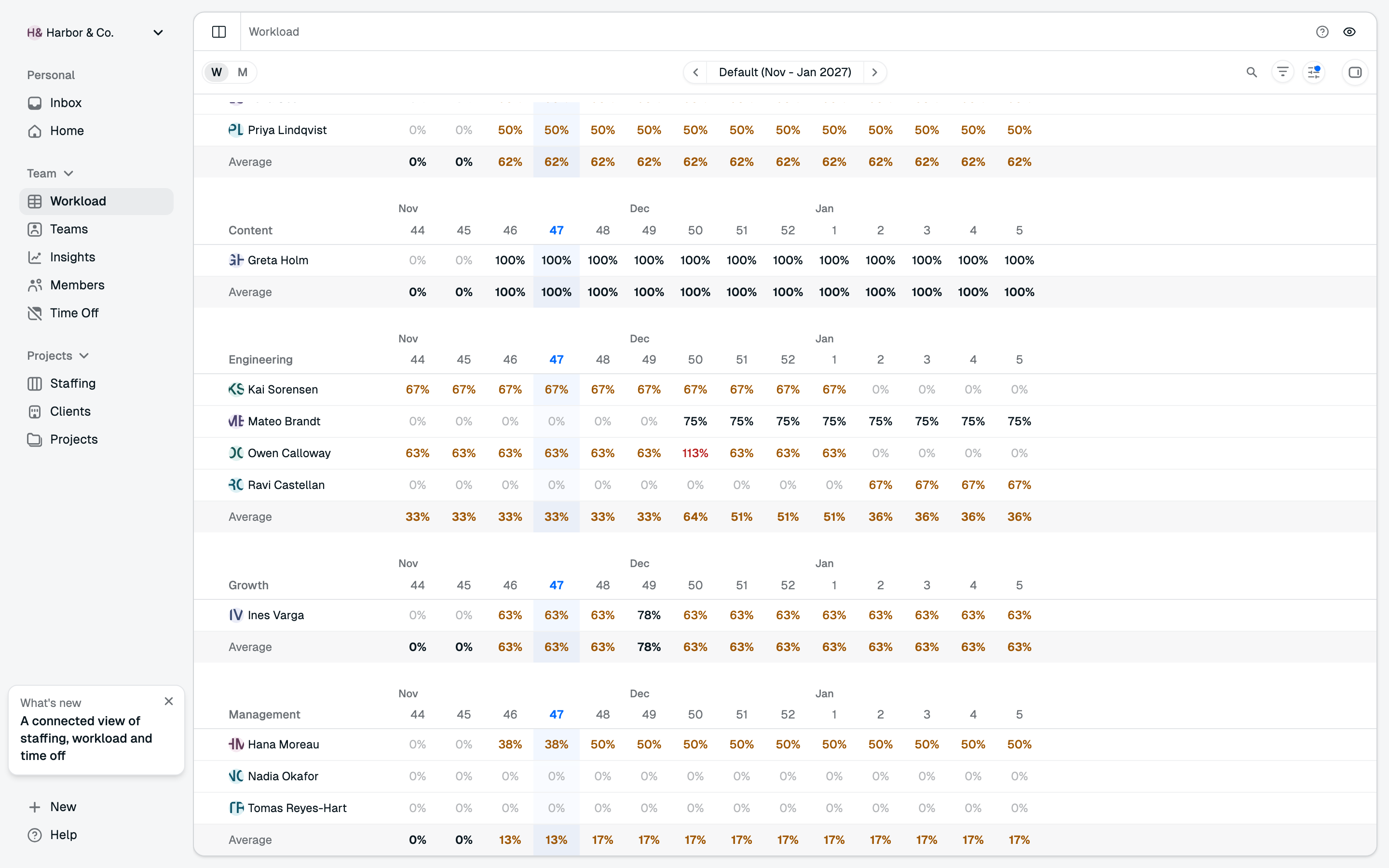
A 0% cell (or a missing person) comes from how Workload aggregates Sunday-start weeks, active statuses, and available hours.
| Cause | What you see | Fix |
|---|---|---|
| No hours booked in that week | 0%, greyed out | Add planned hours on the project page (+ Add person), Staffing, or the person's Workload page |
| Project is Completed or Cancelled | 0% even if the member page still lists past rows | Change the project Status to Active, Planned, or Draft (Draft and Planned do count toward capacity; Show completed and Show cancelled on a person's page display rows without changing %) |
| Hours stored in the neighboring week | 0% in the week you checked | Weeks start on Sunday; hover the week header to check Week N of YYYY |
| Monthly view is selected by default | Monthly % differs from weekly cells | Switch granularity from Month to Week |
| 0 available hours | A dash in percentage cells; person excluded from Average | Set Weekly hours in Settings → Members or on the person's Compensation period |
| Full-week approved time off | A dash or lower available hours (pending requests are ignored) | Review the request in Time Off → Approvals |
| Member is inactive, Pending, Suspended, or an agent | Person is missing from the grid completely | Activate or finish inviting the member; turning on Suspended users in the display panel does not restore them because the server excludes them |
| Active filter or search | "No team members match your view" | Select Show all team members to clear filters and Search team members... |
| Empty group or period | "No workload in this period" | Move to another period with Previous period / Next period |
| No active members yet | "No team workload yet" | Select Manage team members (requires user-management permission) |
| Load error | "Couldn't load the team workload" | Select Try again |
| Removed from project | Future weeks show 0% | Expected; closing an allocation deletes future weeks only |
See See who's free next week and How the numbers work.
A finished project still shows in my week
Capacity follows project Status, not End Date, so assignments past a project's end date keep counting until someone closes the project.
- Ask the Project Manager or an Admin to change the project's Status to Completed (or Cancelled) and select Confirm on "Completing releases capacity".
- That releases planned hours after the current week.
See Close out a finished project.
My workload is wrong or out of date
Edit your own rows directly on T&M projects, or send Request project hours for Fixed and Retainer projects.
- Open your own Workload page (Go to My Workload) and edit cells on T&M projects.
- For Fixed or Retainer projects, press
⌘K(orR H), choose Request project hours, fill in New Project Hours Request, and select Create request.
See Keep your hours up to date.
I can't edit hours or jump to a client from Workload
The team Workload grid is read-only for hours and does not link directly to client pages.
- To edit your own hours on a T&M project, open your individual Workload page.
- To edit hours on a Fixed or Retainer project, use Request project hours (
⌘KorR H), or open the project page (or Staffing for Owners and Admins) if you have assignment permissions. - To view a client, open Clients in the sidebar.
See Why is someone over capacity?.
Actual hours are all zero
There is no web UI in Supervisible to enter actual hours, so actuals stay at zero unless logged through the API or MCP.
- Planned hours drive Workload capacity and serve as the fallback on Project Financials, Staffing, and Home when no actual hours are logged.
- To record actual hours, send
POST /api/v1/actual-hours(scopewrite:actual_hours) or use the MCP toolupsert_actual_hours. Members can log only their own hours.
See Log actual hours.
Time off
My time-off request is still pending
A request waits under Awaiting approval when its type has Requires Approval on, until your Reports to manager, an Owner, or an Admin approves it.
- Ask an Owner or Admin to approve it in Time Off → Approvals, or check who is listed in your Reports to field in Settings → Members.
- Remember that email and Slack DM alerts for Time-off activity are off by default, so your approver may not have received an email or DM.
See Approve time off.
I can't see a report's request to approve
Only the person set in the requester's Reports to field, an Owner, or an Admin can approve a request. Holding the Manager role or being a team Lead gives no approval rights.
- Check that an Owner or Admin set you in the person's Reports to field in Settings → Members.
- Check whether the time-off type has Requires Approval on (built-in Sick and Bereavement book automatically without waiting).
- If you are an Admin waiting for a notification, Admins are not notified when the requester has a Reports to manager set; open Time Off → Approvals directly.
- Turn on email and Slack DM alerts under Settings → Notifications → Time-off activity.
See Approve time off.
Someone is out but not in the Slack channel
The Slack out-of-office channel only posts approved, non-sensitive time off when Post when time off is approved is turned on.
- Requests still in Awaiting approval are never posted.
- Types marked Sensitive are never posted to the Slack OOO channel.
- Check Time Off → Team calendar for the complete view of approved absences and Company holidays.
See Approve time off.
No out-of-office event in Google Calendar
Supervisible creates Google Calendar out-of-office events only for approved Full day off requests that have not already ended, when the person connected Google Calendar in Settings → Connected Accounts.
- Half day requests do not create calendar events.
- Editing an approved future request returns it to Awaiting approval and deletes the old calendar event until re-approved.
- The Google Calendar card is hidden for Freelancers.
Money
No revenue showing
Missing revenue on a project, Project Financials, Staffing, or Home comes from billing terms, rates, visibility, status, or date range.
| Cause | What you see | Fix |
|---|---|---|
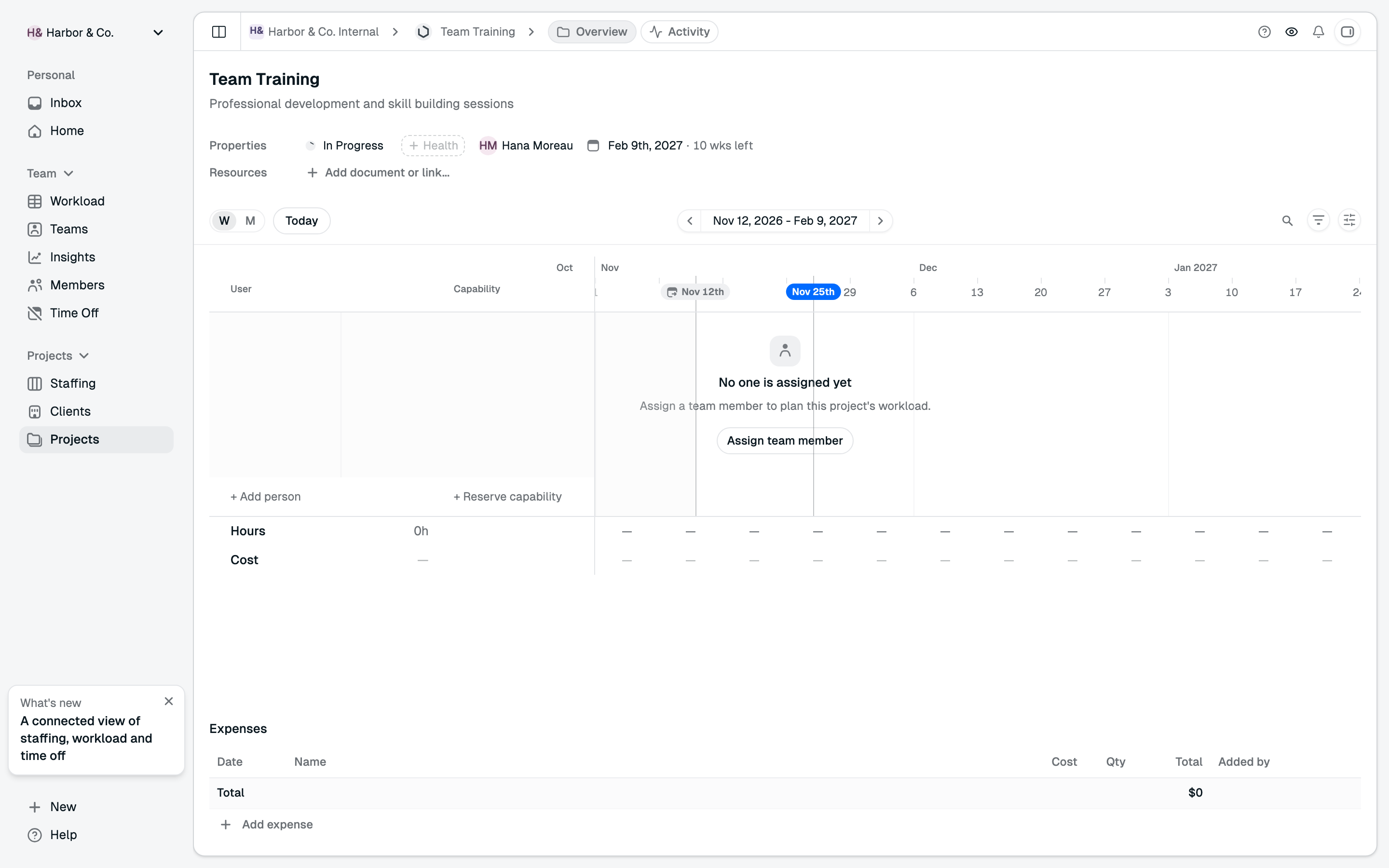
| Project is Non-billable or has no billing terms | Project Financials: "No billable projects in this period"; Staffing: Revenue shows a dash; project page: Revenue and Margin rows hidden | Open project Billing and choose Retainer, Fixed, or T&M |
| Retainer or Fixed with no amount | Rows hidden or $0 | Enter Monthly amount (Retainer) or Project value (Fixed) |
| Past months have no schedule rows after a terms change | Past months show $0 (changing terms regenerates from the current month onward only) | In Project Financials, open the project row menu and select Rebuild schedule from billing terms |
| T&M with no bill rate in the 4-step chain | $0 revenue and Bill rate shows a dash | Set Bill rate per hour on the assignment, Default bill rate / Bill rate on the person, Bill rate on the capability, or Hourly rate on the project |
| T&M with no hours in the selected range | Dash in Revenue | Add planned assignments (or log actual hours via API/MCP) |
| Role has no financial visibility | Project Financials redirects to Projects; Staffing P&L, Home revenue, and project financial rows hidden | Have an Owner or Admin add your role under Settings → Profitability → Financial Tracking → Visibility Settings → Add role |
| Project Status is Draft or Cancelled | Excluded from Project Financials and Staffing (Staffing shows full P&L for Active projects only) | Change Status to Active |
| Dates outside the visible range | Blank cells or "Change the date range to look for project financial activity." | Adjust the date range picker (remember Project Financials defaults to the current year, Staffing defaults to the current month, and the project page needs both start and end dates) |
See Find projects losing money and How the numbers work.
Staffing and the project page show different margin
Staffing P&L defaults to the current month, uses logged hours when present, and ignores missing cost rates, whereas the project page defaults to the whole project window, uses planned hours only, and marks margin Incomplete when any cost rate is missing.
See the full comparison in Why two screens differ.
Where is the hourly rate?
Cost rates and bill rates live in different places depending on whether you are checking labor cost or client billing.
- Person cost rate: Settings → Members (toggle Hourly Rate or Monthly Cost in the display panel) or the person's Compensation tab (Hourly rate).
- Bill rate: assignment Bill rate per hour on Staffing, person Default bill rate in Settings → Members, capability Bill rate in Settings → Capabilities, or project Hourly rate under Billing on a T&M project.
- Trailing rate (shown on Home as Revenue per hour): computed automatically as
revenue / billable hoursfor the current calendar month.
See Rates.
Projects
Why does my project show Cancelled?
Cancelled is set manually when someone changes a project's Status to Cancelled (projects do not cancel automatically when their End Date passes).
- Marking a project Cancelled releases planned hours after the current week and excludes the project from Workload, Project Financials, Staffing, and Home.
- If the project should still be active, open it from Projects (filter Status to Cancelled if hidden) and change Status back to Active.
See Close out a finished project.
The project restarted or has a second phase
Extend the project's end date and carry staffing forward, or create a new project for the new phase.
- Single project: move End date later on the project and check Carry staffing forward, then select Extend project.
- Multiple projects: select projects on Projects, choose Extend, pick Add days or Set date, keep Copy last week's assignments to new period checked, and confirm.
- For a separate Phase 2 project, create a new project with Create new project (or use the MCP tool
duplicate_projectif you have project-creation permission).
See Extend or restart a project.
API and MCP
Can I update Supervisible from another AI tool?
Yes, through the public REST API (with an sv_live_ key created by an Owner or Admin) or through MCP if your client supports remote OAuth MCP.
- The MCP setup card under Settings → Connected Accounts → MCP Server includes tabs for Claude Desktop, Claude Code, ChatGPT, and Cursor pointing to
https://app.supervisible.com/api/mcp. - For scripts or coding agents using HTTP directly, create a key in Settings → API → Create key and call
https://app.supervisible.com/api/v1/...withAuthorization: Bearer sv_live_....
See Developer: your first API or MCP call.
My assistant's write did nothing
MCP tools with a preview field default to preview: true, so the first call shows what would change without saving anything.
- Tell your assistant to confirm and re-run the tool with
preview: falseto apply the change. - Note that
revoke_api_key,manage_member, andmanage_workspaceapply immediately with no preview, and REST API writes always apply immediately.
See Developer: your first API or MCP call.
Settings → MCP shows Page not found
Settings → MCP (workspace Connections and Recent logs) is restricted to Owners and Admins; other roles get Page not found.
- To connect your own assistant, open Settings → Connected Accounts → MCP Server instead.
See Developer: your first API or MCP call.