
Why is someone over capacity?
Filter Workload to Overloaded (>100%) and open the person's page to see every project feeding that week alongside their available hours. A person goes over capacity when planned hours across all active, planned, and draft projects exceed their available hours for that Sunday-start week.
Who can do this Any non-freelancer can inspect Workload. Adjusting another person's hours requires Owner or Admin assignment
permissions, or being the project's Project Manager or Account Manager. Members can edit their own rows on
T&M projects.
Steps
Filter Workload to Overloaded (>100%)
Open Workload, switch granularity to Week, select the week you want to check, and filter Workload to Overloaded (>100%).
Open the overloaded person
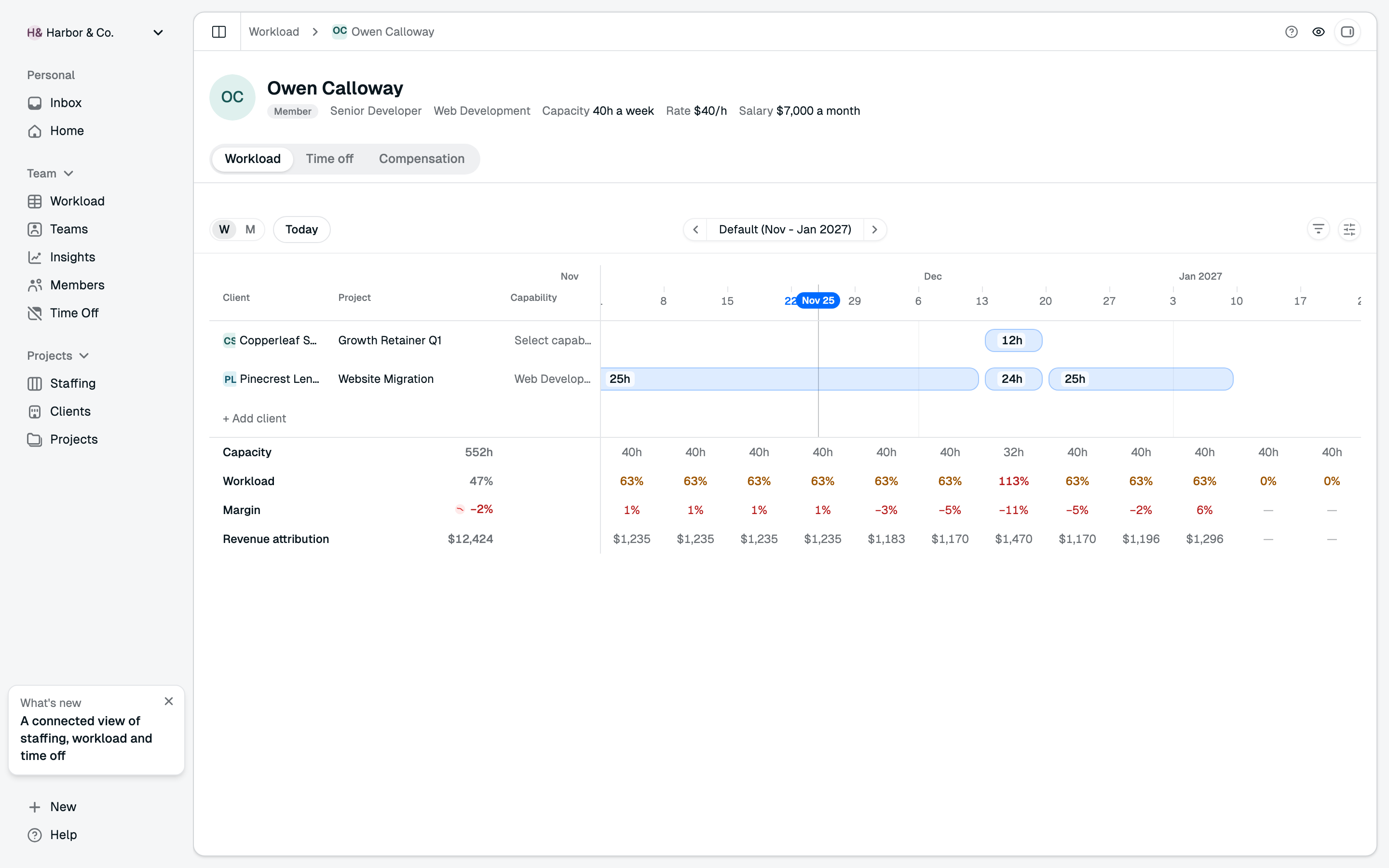
Select the person's name (for example, Owen Calloway) to view their project rows and turn on Over capacity in Customize display if needed.
Check planned hours across every project
Add up the person's weekly hours across all projects listed for that week. Active, Planned, and Draft projects all count toward capacity, even past their End Date.
Check approved time off and Weekly hours
Compare the person's available hours that week against their default Weekly hours (40h by default) in Settings → Members, and check Time Off → Team calendar for approved time off or company holidays.
What you'll see
Utilization is round(assigned / available × 100). Any week over 100% turns red.
| Cause | How to spot it | Where to fix it |
|---|---|---|
| Too many planned hours across projects | Project rows sum above normal Weekly hours (for example, 44h planned on a 40h week = 110%, +4h over) | Lower or move hours on the project page or Staffing |
| Approved time off shrank available hours | Available hours drop below Weekly hours. For Owen Calloway (40h/wk, 8h/day), 1 approved Full day off leaves 32h available; 36h planned becomes 36 / 32 = 113% | Rebalance hours for that week on the project page or Staffing |
| Weekly hours is lower than expected | Available hours are lower every week (for example, 20h instead of 40h) | Update Weekly hours in Settings → Members or on the person's Compensation period |
| A finished project still counts | A past project stays in the weekly total because its Status is still Active, Planned, or Draft | Change the project's Status to Completed or Cancelled |

Time-off and public-holiday nuances
- Half day leaves 4 hours available that day (
workingDays × (weekly/5 - 4)). For Owen Calloway on a 40h week (8h/day), one Half day subtracts 4h (leaving 36h available). For Hana Moreau on a 20h week (4h/day), one Half day subtracts 0h (leaving 20h available). - Pending time-off requests are ignored for capacity and do not push someone over capacity until approved.
- Public holidays count only when Marks everyone away is turned on, and they are deducted only on Teams and Home → My week. They are not deducted on Workload or the workspace view of Home, so a person can show Someone over capacity on Teams during a holiday week while looking healthy on Workload.
Fix an overloaded week
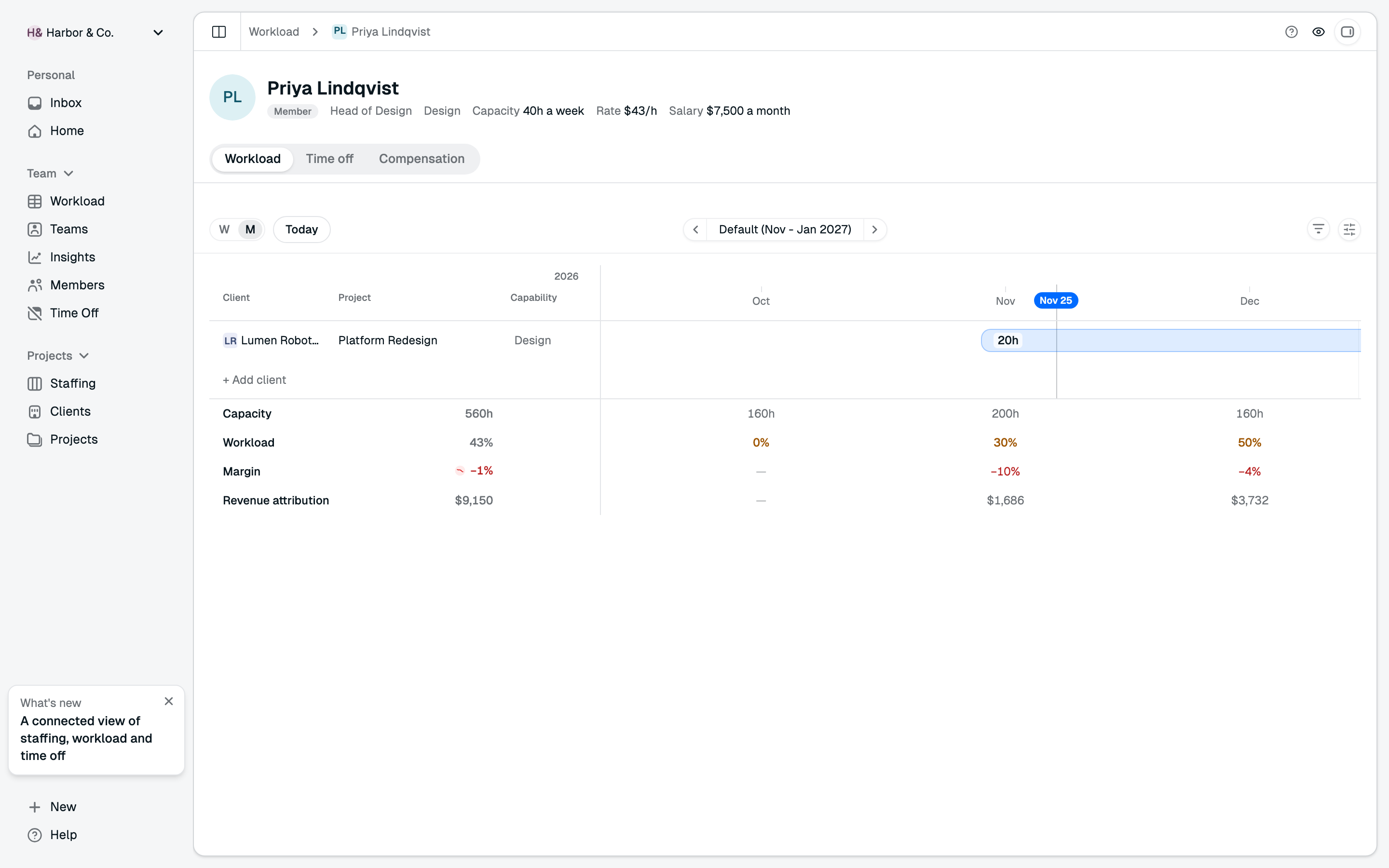
You cannot edit planned hours directly from the team Workload grid, and Workload rows do not jump straight to a client page. To change hours:
- Open the project from Projects (or open Staffing if you are an Owner or Admin) and lower or shift weekly hours for that person.
- If you are editing your own hours on a T&M project, open your own Workload page and edit your row directly.
- If you do not have permission to edit a Fixed or Retainer project, press
⌘Kand use Request project hours.
Common gotchas
- A finished client still fills the person's week: capacity depends on project Status, not End Date. Hours past the end date keep counting until someone sets the project to Completed or Cancelled. See Close out a finished project.
- Teams flags Someone over capacity or negative Free / wk, but Workload looks normal: a public holiday with Marks everyone away reduced availability on Teams (which deducts public holidays) while Workload did not.
- A person has hours booked in a week with 0 available hours: Workload shows a dash in the percentage cell, while capacity overviews count the person as over capacity. Check Weekly hours and full-week approved time off.
- The 70% and 100% thresholds do not match your agency's targets: capacity bands (Underutilized (<70%), Healthy (70-100%), Overloaded (>100%)) are fixed and cannot be changed.