
Pod lead: your first week
About 5 minutes. You're done when your pod's roster is accurate, every member has planned hours for the next two weeks, and no hours requests are waiting.
Who can do thisTeam Lead on a team in Teams (with any workspace role, such as Member or Manager).
Run your pod without an admin
Pod lead is not a separate workspace role. You lead a pod because an Owner or Admin set you as a team's lead in Settings → Teams.
| Action | What a team lead can do today | What requires another role or setting |
|---|---|---|
| Rename the team and change its icon | Included | None |
| Add or remove team members | Included (you cannot remove yourself) | Changing who leads requires an Owner or Admin |
| View team capacity and Workload | Included for non-freelancers | Freelancers cannot view Workload or Teams |
| Create or delete teams | Not included | Owner or Admin |
| Create projects or move projects into a pod | Not included as team lead alone | Owner, Admin, or Manager role (an Owner or Admin can assign the Manager role) |
| Edit other people's planned hours on a project | Not included as team lead alone | Must be the project's Project Manager or Account Manager, or hold the Owner or Admin role |
| Open Staffing | Not included (shows Page not found) | Owner or Admin only |
| Approve a teammate's time off | Not included as team lead alone | You must be set as that person's Reports to in Settings → Members, or be an Owner or Admin |
If you hold the Member role and are not listed as a project's Project Manager or Account Manager, ask an Owner or Admin to assign you as Project Manager on your pod's projects or grant the Manager role for project creation. To approve time off for your pod, ask an Owner or Admin to set you in each person's Reports to field.
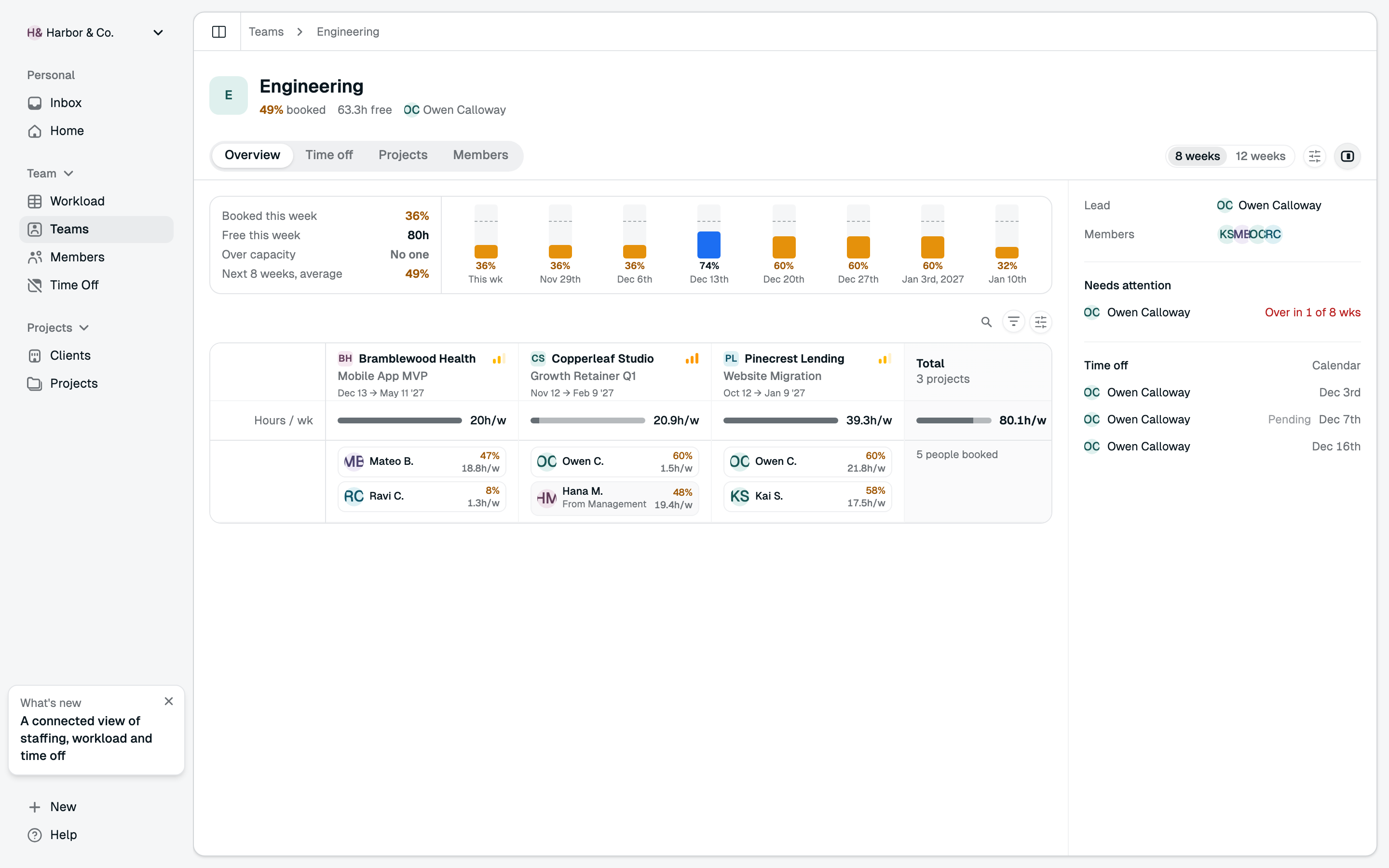
1. Check who is in your pod
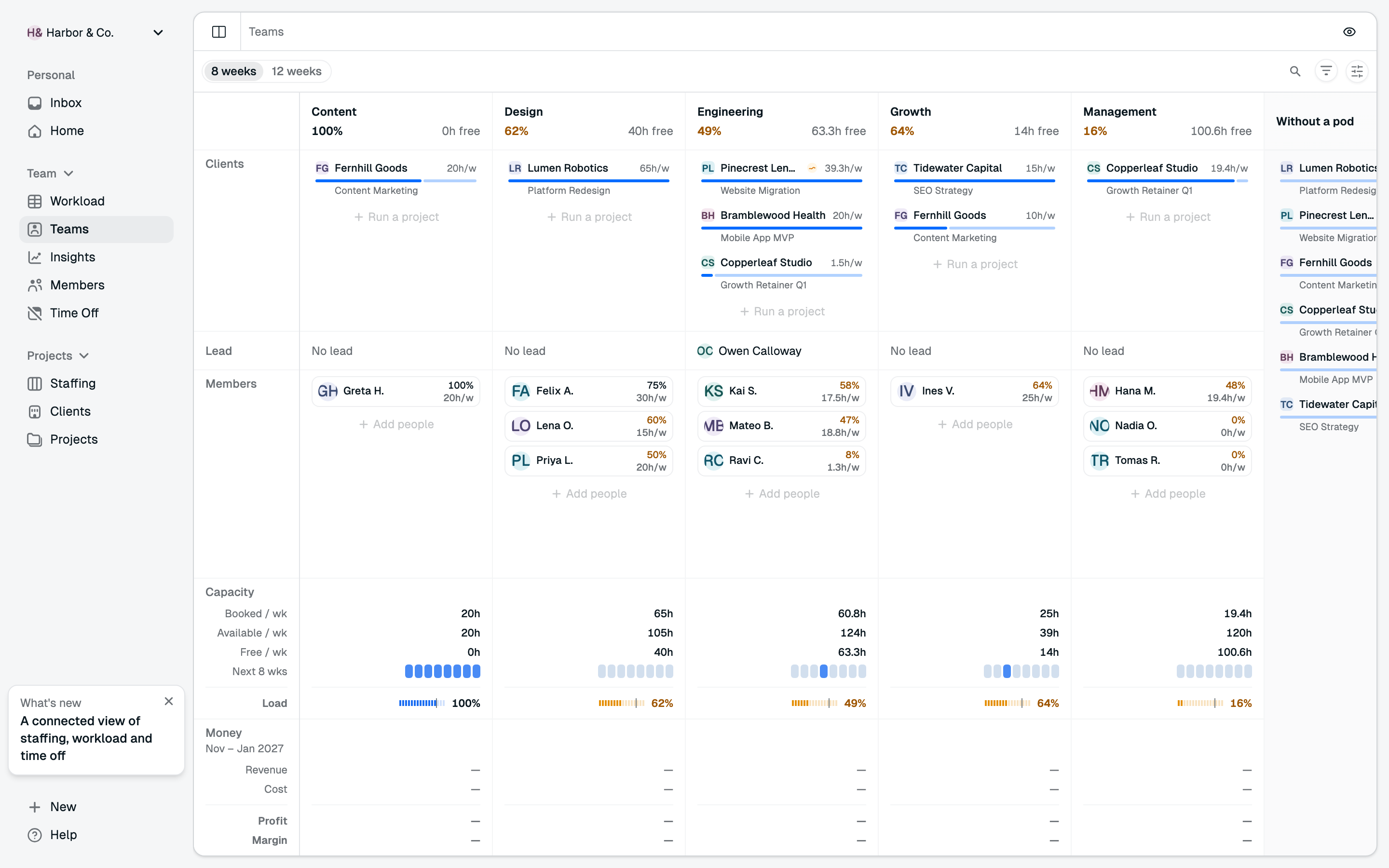
Open Teams in the sidebar to see every team's clients, members, Booked / wk, and Free / wk averaged over 8 weeks.
Find your team column
Update membership if needed
Open your team from Teams and add or remove members so the roster matches who is actually in your pod.
Your pod column now shows the right headcount and 8-week average Free / wk.
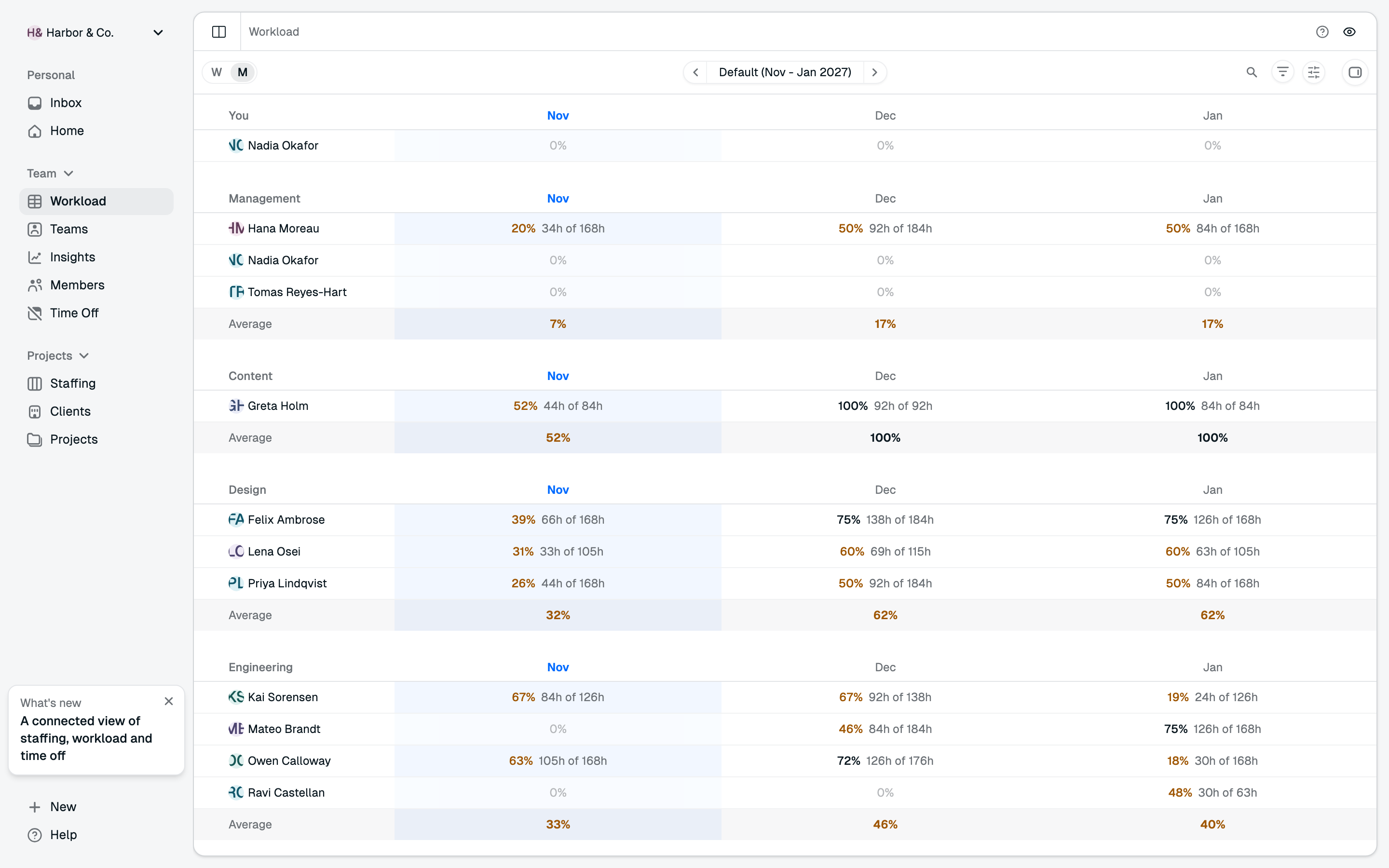
2. Check your pod's load for the next two weeks
Review who has room and who is overbooked before the week starts.
Open Workload
Select Workload in the sidebar and switch granularity from Month to Week.
Inspect this week and next week
Check each pod member's weekly percentage. Use Next period to look ahead, and watch for red cells above 100% or Someone over capacity warnings on Teams.
You can see every pod member's assigned versus available hours side by side.
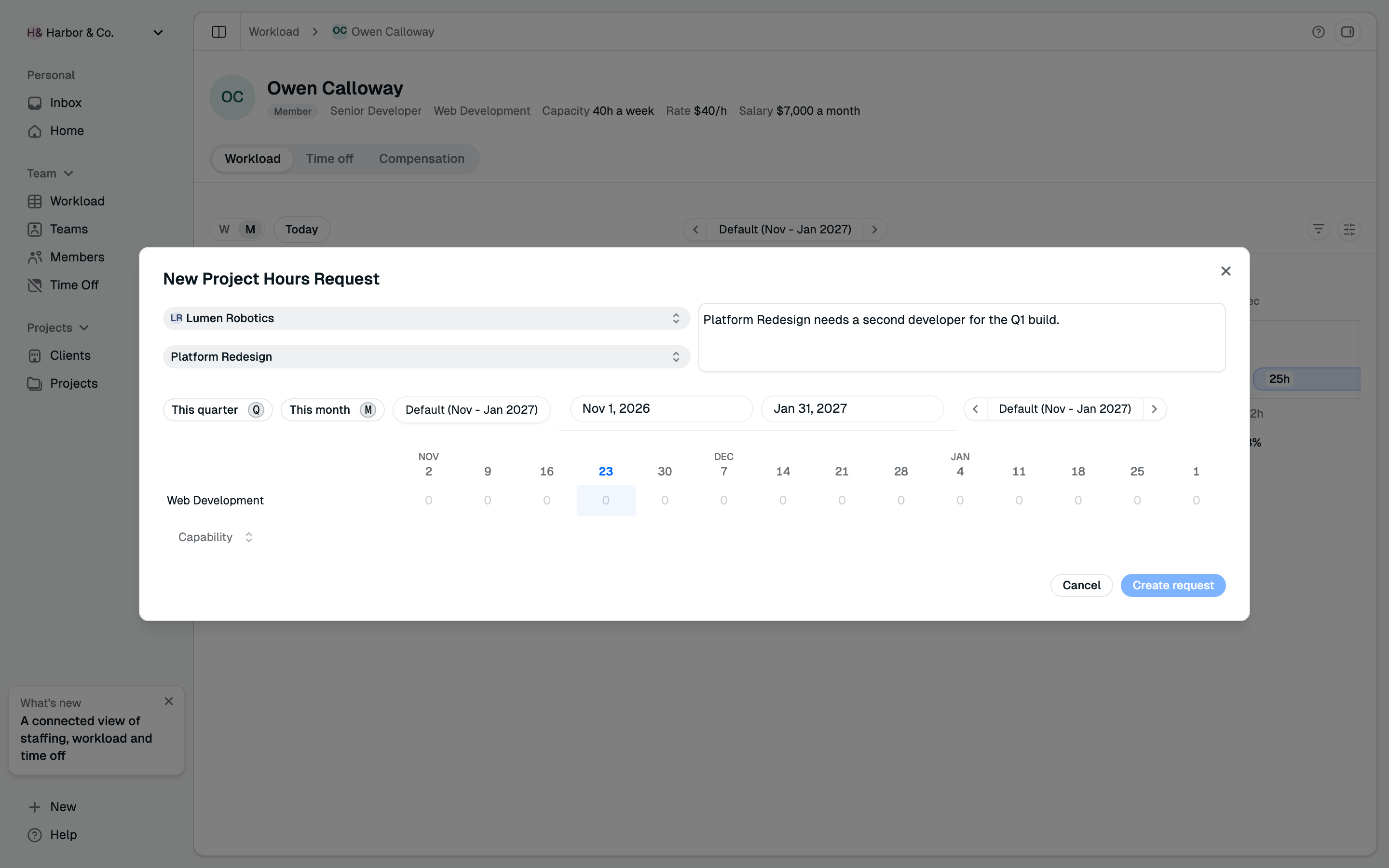
3. Get hours from your team without DMs
Instead of asking each teammate in Slack how many hours they spend on every project, have them update or submit their own hours in Supervisible.
- On T&M projects: each member opens their own Workload page and edits their planned hours directly on their own row.
- On Fixed or Retainer projects: each member presses
⌘K(orR H), chooses Request project hours, fills in New Project Hours Request with weekly hours and a reason, and selects Create request.
When a member submits a request, the project's Project Manager is notified. Anyone who can edit assignments on the project, including its Project Manager or Account Manager, can approve or reject it. Approving writes the weekly hours straight to the project and adds the person to the project team if needed.
4. Check who is out
Before staffing work for the next two weeks, check who has approved time off.
Open Team calendar
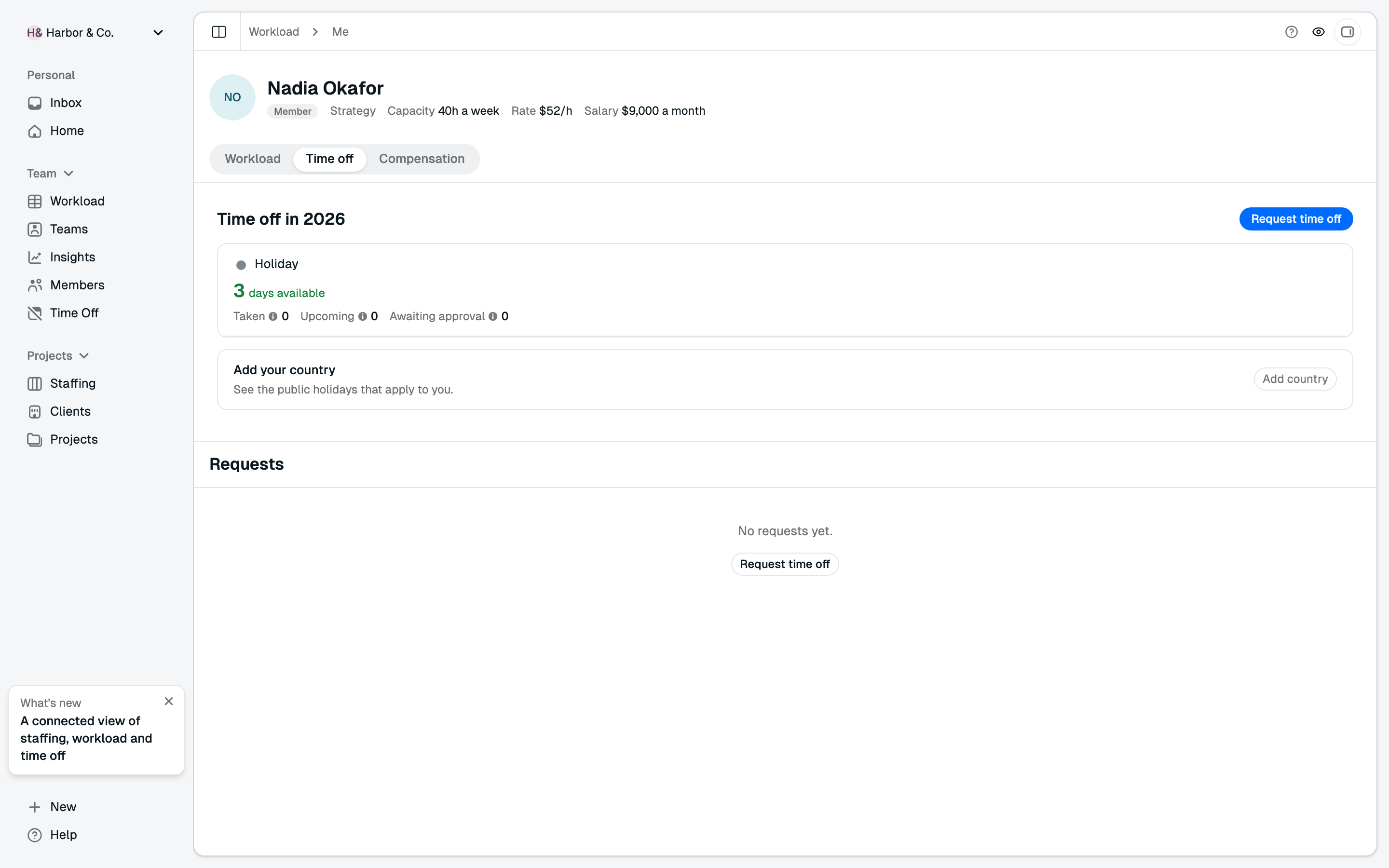
Go to Time Off → Team calendar to see approved absences and Company holidays across the agency.
Review pending requests if you are their manager
If you are set as a teammate's Reports to, open Time Off → Approvals (or Inbox) to approve or reject their pending requests.
You can spot time-off conflicts before assigning hours for the week.
You're done when
- Your pod's roster in Teams matches your active teammates.
- Every member in your pod has planned hours for this week and next week in Workload.
- Teammates know to edit their own T&M rows or send Request project hours for Fixed and Retainer work.
- You checked Time Off → Team calendar for absences over the next two weeks.