
Invite your team
Open Settings → Members, select Invite, enter each person's Email and Role, and select Send Invites. Invited people receive an email with a 7-day join link and appear as Pending until they sign in.
Who can do thisOwner or Admin. Owners can assign any role. Admins can assign only the Manager role.
Steps
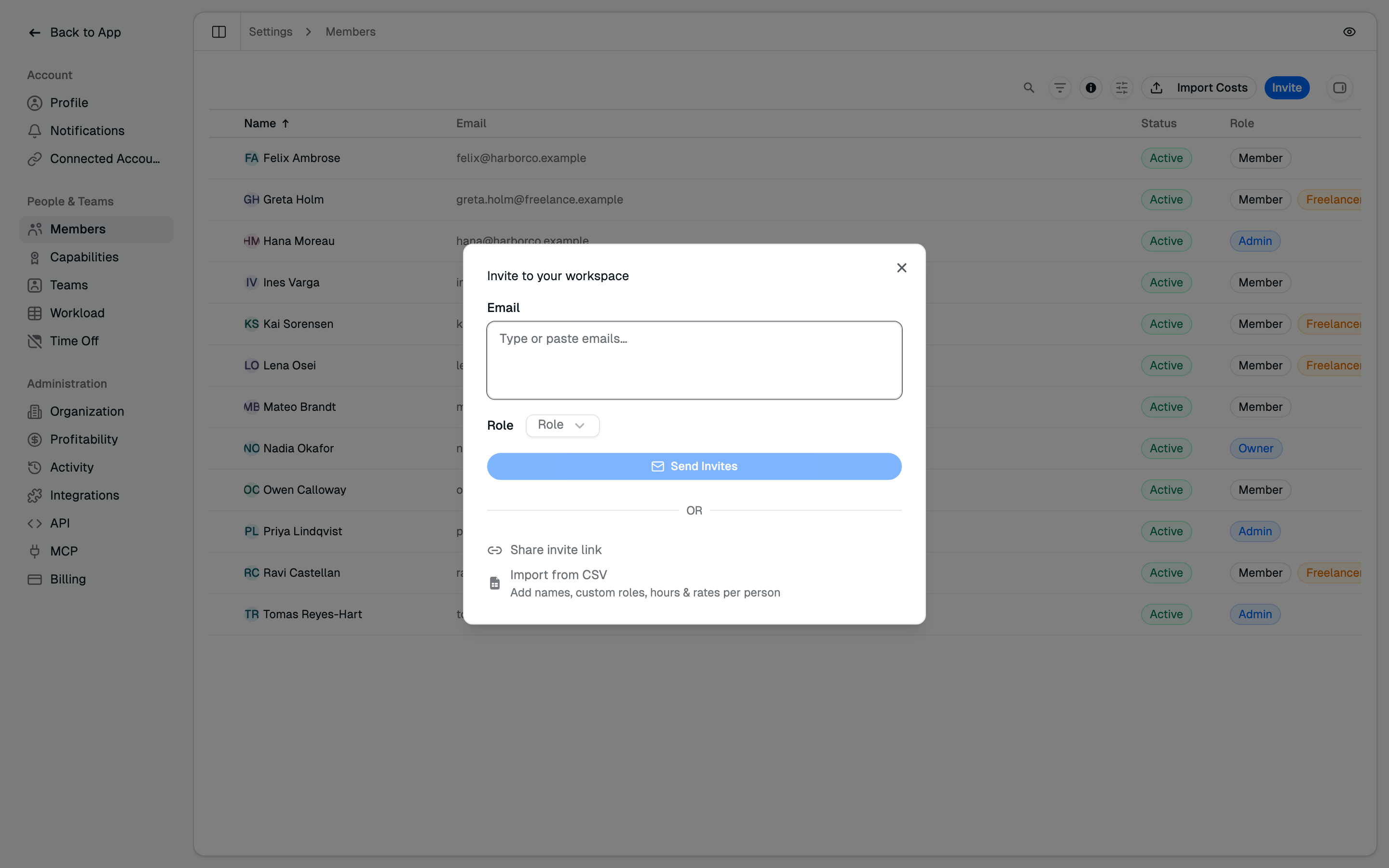
Open the invite dialog
Go to Settings → Members and select Invite (or open Invite and manage members from the organization
menu, or press N I / run Add member from the command menu).
Enter email and role
In Invite to your workspace, enter the person's Email and choose a Role. If you choose Freelancer, you can optionally check Don't send invitation email.
Send invitations
Select Send Invites. Supervisible emails each person with the subject "<sender> invited you to join <workspace>" and a join button valid for 7 days.
What you'll see
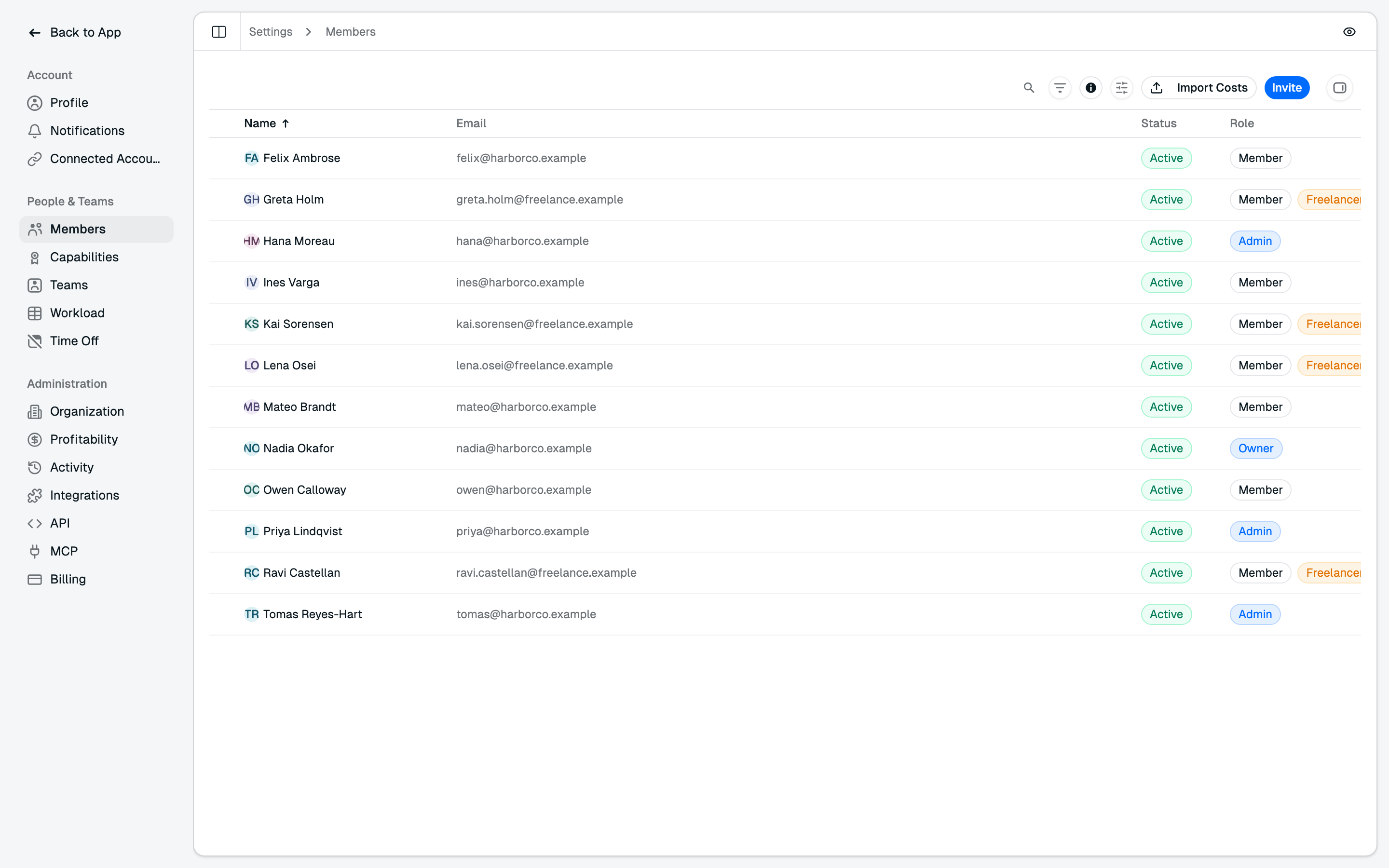
After sending invites, check Settings → Members. Turn on Pending invitations or Suspended members in the display panel if you want to see non-active rows.
| Status | Meaning |
|---|---|
| Active | Signed in and counted in Workload |
| Pending | Invited, has not accepted yet; excluded from Workload until active |
| No access | Placeholder or member without workspace login access; excluded from Workload |
| Suspended | Deactivated member; excluded from Workload |
Other ways to add people
- Share a workspace link: in Invite to your workspace, choose Share invite link to copy the shared Invite link.
- Auto-join by email domain: go to Settings → Organization → Domains and add your company domain (for example,
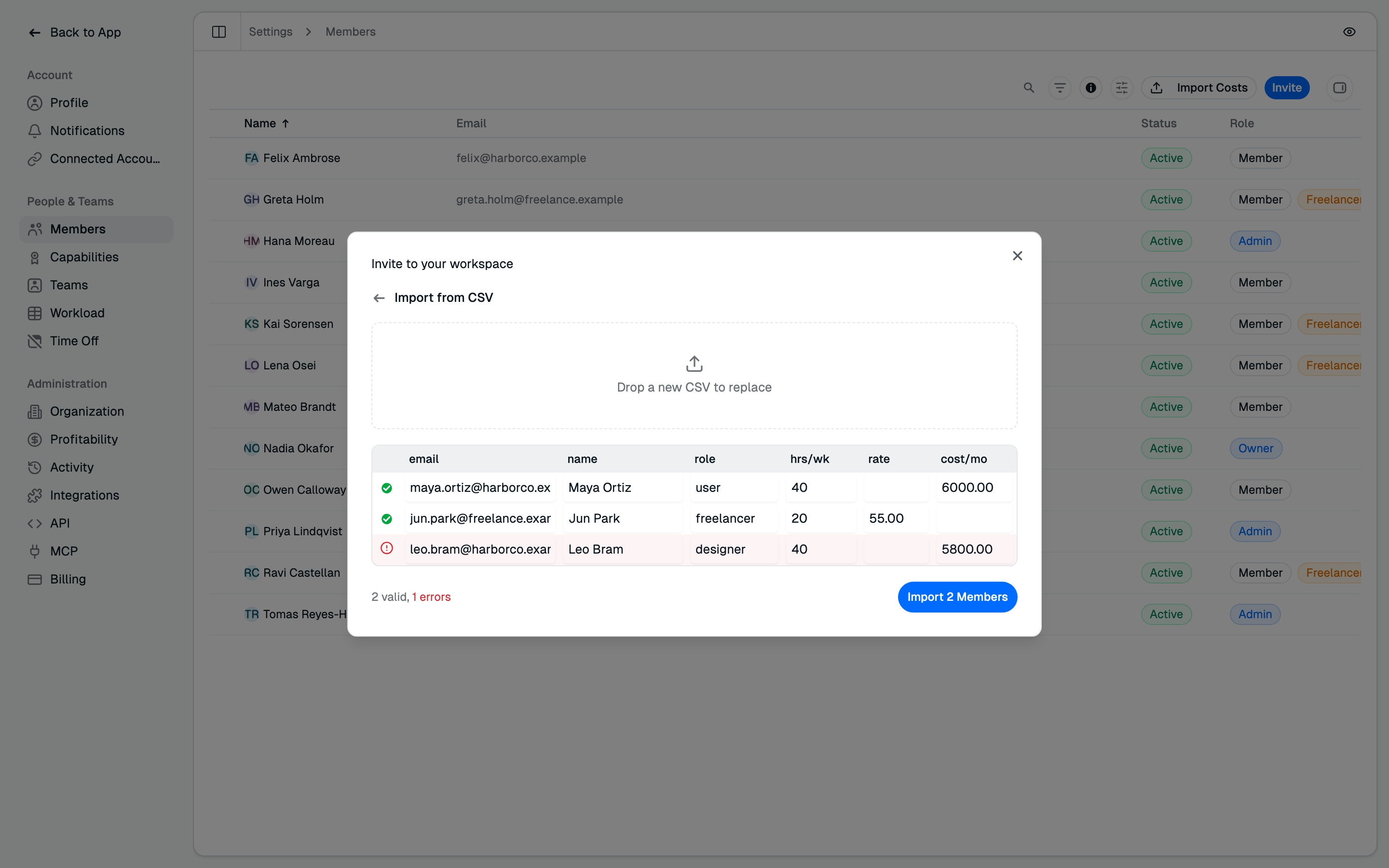
harborandco.example). There is no separate on/off toggle; anyone signing in with a matching work email joins automatically as active with the Member role. - Import from CSV: open Invite to your workspace, select Import from CSV, and upload a CSV with required columns
email,name, androle(plus optionalhours_per_week,hourly_rate, andmonthly_cost). Each file supports up to 10,000 rows. Supervisible processes them in batches of 100 and emails you when the import finishes. Review the editable preview, fix any flagged rows, and select Import N Members; each valid row creates a pending invitation and sends an invite email by default.
If you are waiting for access
If you are a new hire trying to sign in to Supervisible:
- Check your work inbox (and spam folder) for an email titled "<sender> invited you to join <workspace>" and select the join button to sign in with Google or a password.
- If you have no invite email or your link expired after 7 days, ask an Owner or Admin to invite your work email again from Settings → Members (inviting the same address again refreshes the invite).
- If your company added its email domain under Domains, sign in with your work email to join automatically as a Member.
Common gotchas
- "This invite link is no longer valid. Ask your team for a new one.": individual
/join/links expire after 7 days. Have an Owner or Admin invite the same email address again in Settings → Members to issue a fresh link. - "There's no Supervisible workspace for your email domain yet." or "You aren't in a workspace yet. Ask your team for an invite.": your email domain is not listed under Settings → Organization → Domains and you have no active invite. Ask an Owner or Admin to send an invitation.
- "Use your work email address.": you tried to sign in with a personal email address. Sign in with the work email your team invited.
- People typed during onboarding never received an email: names entered under People during Create a project ("Names only. No invites sent.") create placeholders only. Invite them in Settings → Members.
- An Admin cannot assign certain roles: Admins can assign only the Manager role. Have an Owner assign any other role in Settings → Members.