
Approve time off
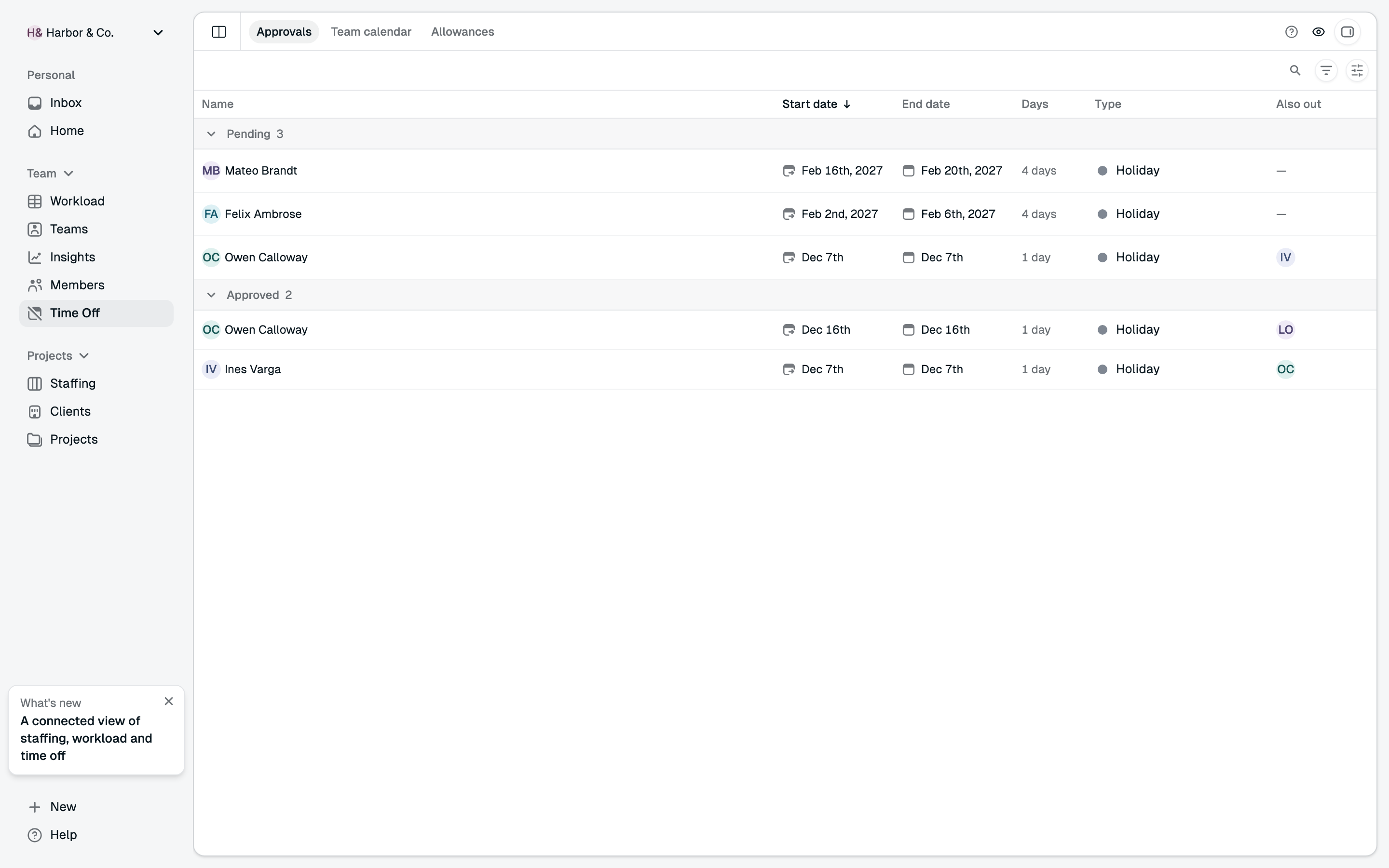
Open Time Off → Approvals, Inbox, Home → Approvals waiting, or your Slack DM notification, check for conflicts, and select Approve or Decline. Requests can be approved only by the requester's Reports to manager, an Owner, or an Admin.
Who can do this You must be the requester's Reports to manager (set in Settings → Members), an Owner, or an Admin. Holding the
Manager role or being a team Lead gives no time-off approval rights.

Steps
Open pending requests
Go to Time Off → Approvals (or open the item from Inbox, Home → Approvals waiting, or a Slack DM).
Check team overlap
Review Also out on the request or open Time Off → Team calendar to confirm coverage for those dates.
Approve or decline
Select Approve to confirm the time off, or select Decline and enter the required reason in Decline request. For past unresolved requests under Needs resolution, choose Record as taken or Not taken.
What you'll see
After you select Approve, four things happen automatically:
- The person's available hours drop for those dates on Workload, Teams, and Home.
- The requester receives a notification.
- If the person connected Google Calendar in Settings → Connected Accounts and the request is Full day off (not Half day and not already ended), Supervisible creates an "Out of Office - <type>" event (or "Out of Office" for Sensitive types).
- If Post when time off is approved is on in time-off settings and the type is not Sensitive, Supervisible posts the absence to the Slack OOO channel.
Turn on email and Slack DM notifications
Approval alerts are in-app (Inbox) only by default. Email and Slack DM notifications are off until you enable them.
- Go to Settings → Notifications and turn on email and Slack DM under Time-off activity.
- When Slack is installed for the workspace and your Slack account is linked, you can select Approve or Reject directly inside the Slack DM.
If a request does not show for you
If a teammate says they requested time off and you see Nothing awaiting approval, check these causes:
- Reports to is not set to you: being a team Lead or holding the Manager role does not make you an approver. Ask an Owner or Admin to open Settings → Members, select the person, and set Reports to to your name.
- You are an Owner or Admin expecting a notification: when a person has a Reports to manager set, notifications go only to that manager, not to Admins. You can still open Time Off → Approvals directly to approve it.
- The type does not have Requires Approval turned on: built-in Sick and Bereavement types (and newly created types by default) book immediately without waiting. Built-in Holiday, Sabbatical, Parental, and Unpaid types require approval.
- The requester is inactive, or you have no active direct reports.
- Someone else already decided it, or your email and Slack DM alerts are off under Settings → Notifications → Time-off activity.
If your own request is still pending
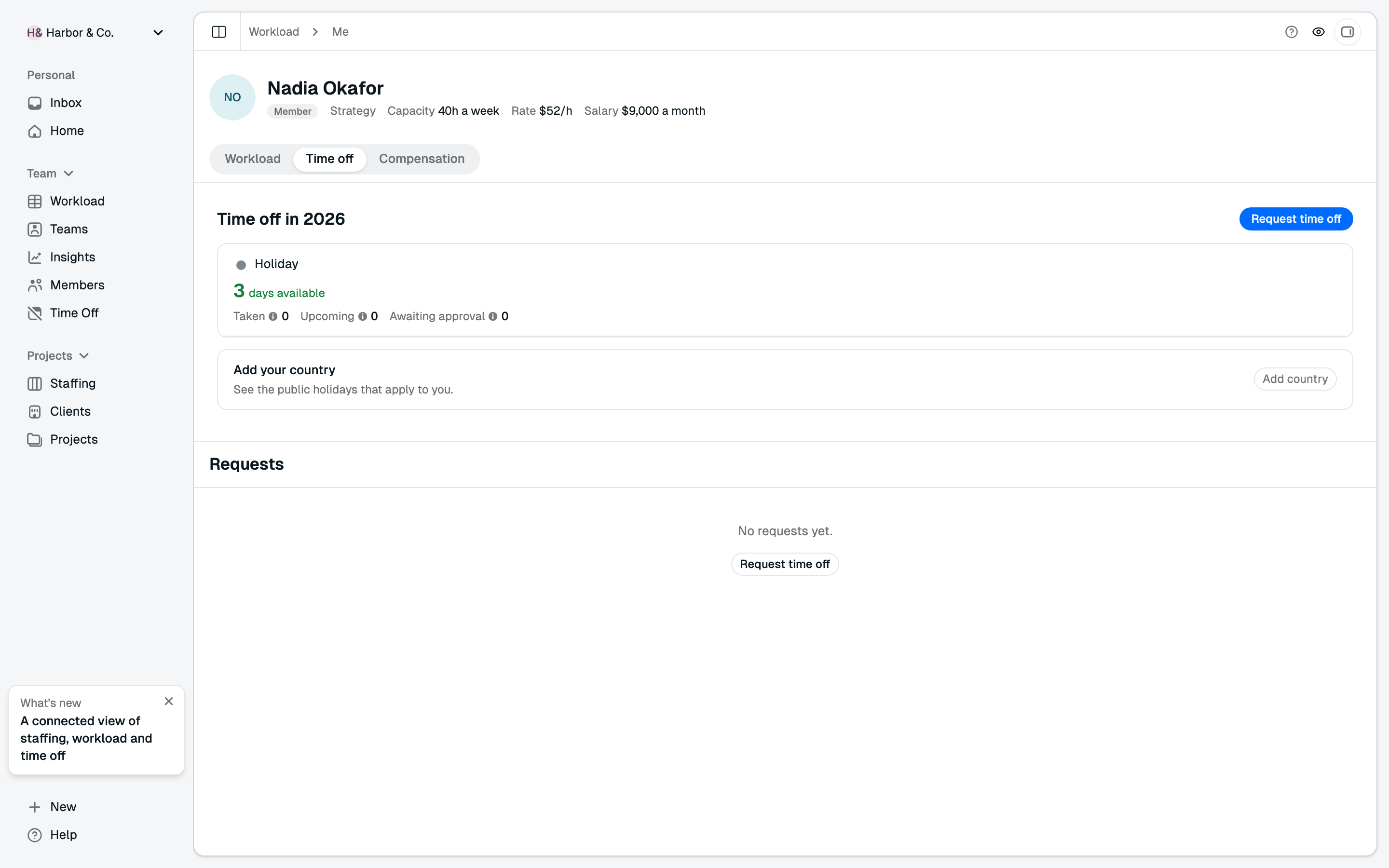
A request stays under Awaiting approval until your Reports to manager, or an Owner or Admin, approves it.
- Ask an Owner or Admin who is listed in your Reports to field in Settings → Members, or ask any Owner or Admin to approve it directly in Time Off → Approvals.
- While your request is pending and starts after today, you can open it and select Withdraw request if your plans change.
- Pending days already count against your yearly allowance, but they do not reduce your available hours on Workload until approved.
Common gotchas
- "User has no manager and you are not an administrator": nobody is set in the requester's Reports to field and you are not an Owner or Admin. Have an Owner or Admin approve the request and set Reports to in Settings → Members.
- "Unable to approve request. It is no longer pending.": another approver already approved or rejected it, or the requester withdrew it. Refresh Time Off → Approvals.
- "Requests that have started can only be changed by a manager or administrator": once a request's start date is today or earlier, the requester cannot edit or withdraw it. Their Reports to manager, an Owner, or an Admin must make the change.
- An approved request returned to Awaiting approval and its calendar event disappeared: the requester edited a future approved request. Requester edits to an approved future request reopen it for approval and delete the old Google Calendar event until it is approved again. Edits by a manager or admin keep it approved.
- "Set up your time off policy first" or Time off is disabled: no time-off policy is active yet. An Owner or Admin must configure types under Settings → Time Off.